How to Use WhatsApp Usernames Without Sharing Your Phone Number
Learn how to create and use a WhatsApp username, hide your phone number from new contacts, set a username key, and protect your privacy.
If you've opened WhatsApp recently and noticed a new "Updates" tab sitting next to your Chats, that's Channels. A lot of people click into it, see a list of unfamiliar names, and just close it again.
Fair enough. It is not immediately obvious what this feature is for, or how it is different from a group you would already be using.
Here's the short version: a Channel is a one-way broadcast. One person or brand posts, everyone else just reads. No replies, no group chat chaos, no "seen by 47 people" pressure. Once that clicks, the rest of it makes a lot more sense. Let's go through it properly - how to follow one, how to set up your own, and a few things worth knowing before you do either.
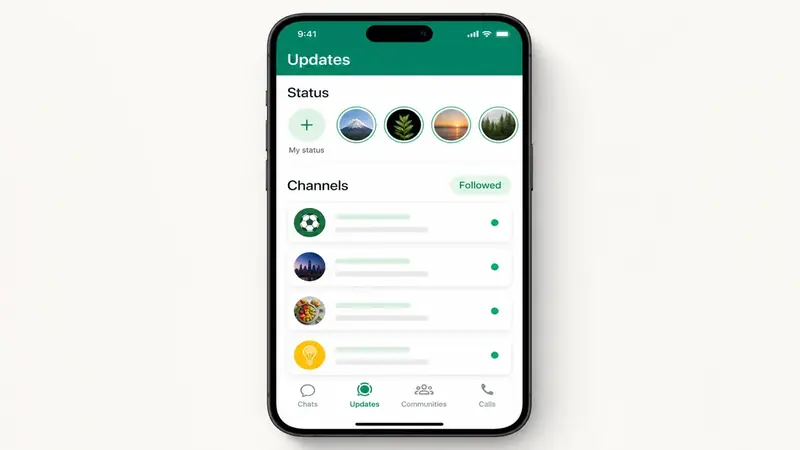
Think of it less like a group chat and more like a public noticeboard. An admin - could be a brand, a creator, a news outlet, whoever - posts updates, and anyone who follows sees them appear in their Updates tab. That's it. There is no reply button under a Channel post. You can react with an emoji, and that is about the extent of the interaction.
This is deliberate, not a missing feature. WhatsApp built Channels specifically so admins could reach a large audience without their notifications turning into an unmanageable group thread with hundreds of people arguing in the comments.
This is where most of the confusion comes from, so let's lay it out plainly:
| WhatsApp Channel | WhatsApp Group | Broadcast List | |
|---|---|---|---|
| Who can post | Only the admin | Any member, unless restricted | Only the sender |
| Can followers reply? | No | Yes | Yes, but privately to the sender only |
| Member limit | No cap | Up to 1,024 | Limited to your saved contacts |
| Do members see each other? | No - fully anonymous | Yes | No |
| Where it appears | Updates tab | Chats tab | Chats tab |
The anonymity part is the one that surprises people most, so it gets its own section below.
This one is genuinely a bit different from most social platforms. If you follow a Channel, the admin cannot see your name, your number, or that you are even following it. You just show up as a number in a follower count. And if you are the one running a Channel, you cannot see your individual followers either - not by design flaw, but on purpose.
The upside is obvious: you can follow a Channel about something you would rather not broadcast to your contacts - a health topic, a niche fandom, a political cause - without anyone knowing. The trade-off, if you are running a Channel, is that you do not get the kind of direct relationship with your audience that a group gives you. You are broadcasting into the void a little. Whether that is a pro or a con really depends on what you are using it for.
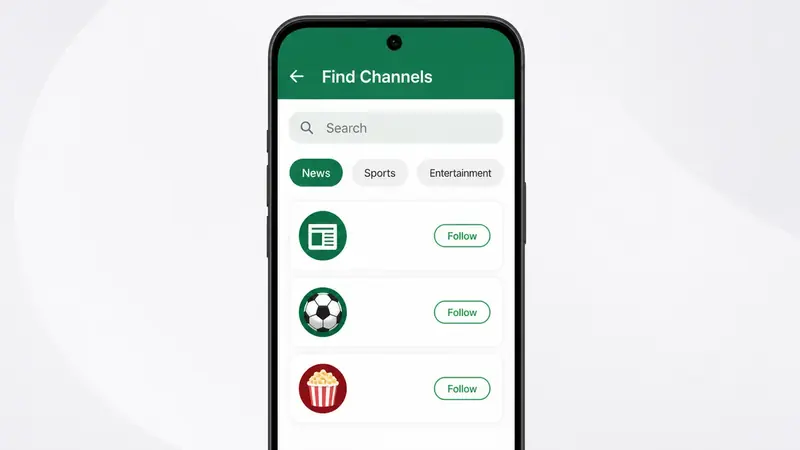
That's genuinely it. No approval needed, no admin has to accept you - you are in instantly, and it appears in your Updates tab from then on.
One thing that trips people up: you follow a Channel expecting to get pinged about new posts, and nothing happens. That's normal. WhatsApp mutes Channel notifications by default, on the logic that most people follow a handful of Channels and do not want their phone buzzing every time one of them posts.
If privacy is the reason you prefer quiet updates, you may also want to hide your online status on WhatsApp so regular chats do not show when you are active.
If there is a specific Channel you do not want to miss - say, your favorite creator, or a local news account - you can turn notifications on for just that one:
Everything else stays quiet unless you go in and check the Updates tab yourself.
If you are a creator, a small business, or just running a community and want a cleaner way to post updates without the group-chat noise, creating a Channel takes about two minutes.
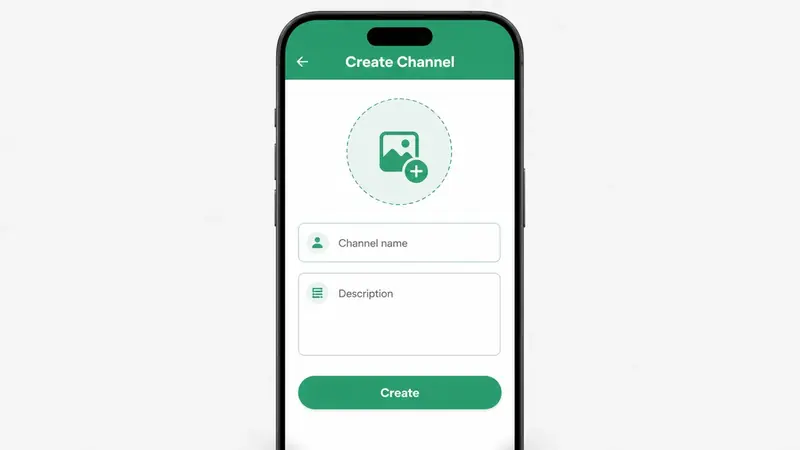
From here you can start posting - text, images, polls, whatever fits - and share your Channel's invite link anywhere you would normally point people, like your Instagram bio or your website. A clean icon helps people recognize the Channel quickly, so a free AI background remover for WhatsApp DP can be useful before you publish.
Channels support most of the media types you would expect: text updates, photos, videos, voice notes, polls, and links. What you cannot do is have a back-and-forth - there is no comment section, no way for followers to reply publicly, and no group discussion thread hanging underneath your posts. If you are making playful visual updates instead of announcements, you may get more use from animated WhatsApp stickers from your photos.
If people contact you privately outside your Channel, review WhatsApp usernames and phone-number privacy. This is separate from the Channel’s follower-privacy settings.
If you are setting up a Channel, it is worth knowing your phone number is not shown to your followers - they just see your Channel name and icon, the same as you would see for any brand or public figure you follow. Meta itself can still see the number tied to the account, but that is not visible to the people following you. A lot of businesses set up a dedicated number just for their Channel rather than using a personal one, mostly just to keep things tidy rather than out of any real necessity.
If you only need short personal updates instead of a public broadcast, WhatsApp Status Quotes may fit better than a full Channel.
You can update your Channel's name, description, or icon any time from its settings, and leaving or muting a Channel you follow works the same way as any other chat - tap and hold, then choose the option you want.
Posting daily sounds engaged, but it often backfires. Somewhere around three to five posts a week tends to hold attention without wearing it out.
Under a couple of posts a week, you risk fading out of people's habit of checking in at all.
For Hindi and Hinglish updates, explore AI tools for Hindi content creators for planning, scripts and visual ideas.
A Channel that is purely "buy this, buy that" gets muted fast. Add behind-the-scenes posts, updates and polls to make it worth following.
For subscriber communication by email, compare email marketing tools for subscriber campaigns. These are email platforms, not WhatsApp Business API providers.
If you are a solo creator or a small business just starting to build an audience, a regular Channel is genuinely enough, and it is free. Where it starts to fall short is at scale - if you need things like automated replies, customer segmentation, or integration with a CRM, that's where WhatsApp's Business API comes in, which is a separate, paid setup built for exactly that kind of automation. Most people reading a beginner's guide like this one do not need to think about that yet - it is worth knowing it exists for later, not something to worry about on day one.
For regular reminders and customer follow-ups, a Channel is not always the right tool; in that case, learn how to schedule WhatsApp messages on Android instead.
Once you get past the initial "wait, what is this tab" confusion, WhatsApp Channels are pretty simple - it is just a one-way way to keep people updated without dragging them into a group chat. Follow a few that interest you and see how the Updates tab settles into your routine. And if you are thinking about starting your own, do not overthink the launch - post a few times, see how it feels, and adjust from there. It is a low-stakes feature to experiment with either way.
If you accidentally remove an important chat while experimenting, here is how to recover deleted WhatsApp messages.
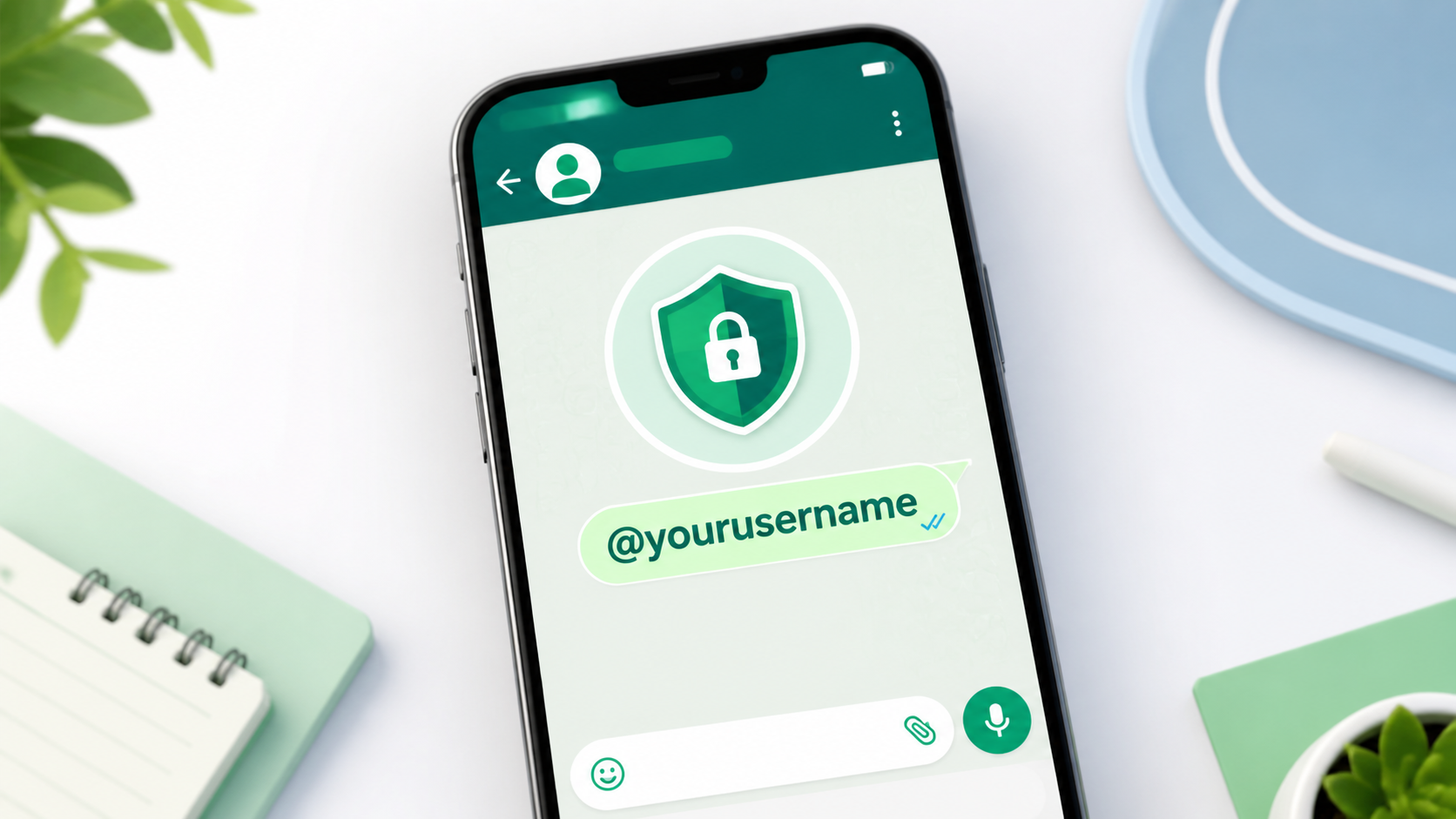
Learn how to create and use a WhatsApp username, hide your phone number from new contacts, set a username key, and protect your privacy.
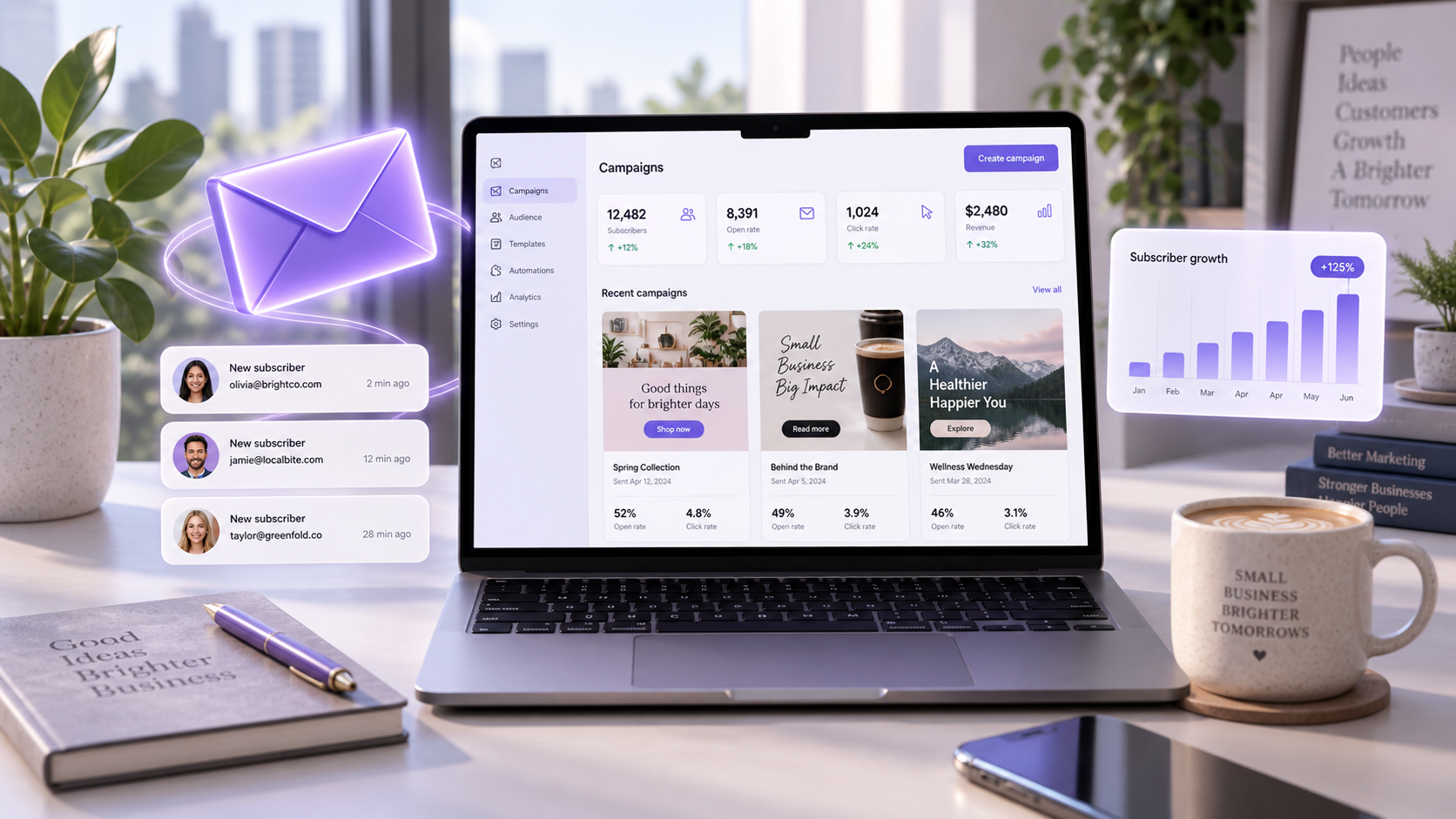
Compare 10 email marketing platforms for small businesses, including pricing, automation, CRM features, ecommerce tools and free-plan limitations.

Discover the best AI tools for Hindi content creators in 2026: writing, voiceover, video, design and planning tools, both free and paid, compared in one guide.
Explore practical guides to hosting, apps and everyday technology.