Best Free AI Photo Enhancer Apps for Old and Blurry Photos
Compare the top free AI photo enhancer apps for old and blurry photos, including Remini, YouCam Enhance, Fotor, Picsart, Snapseed, Upscale.media, and more.
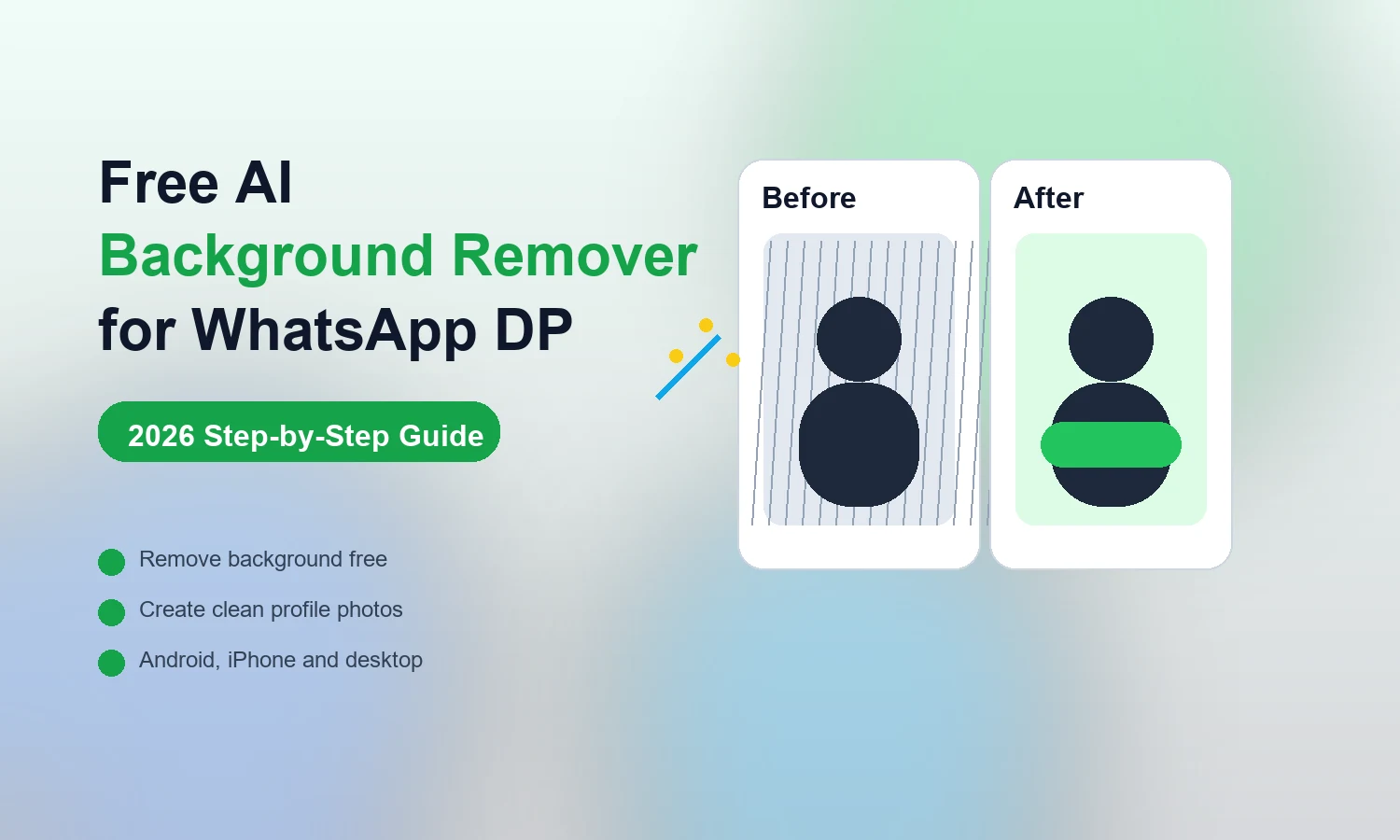
Your WhatsApp DP is often the first impression people get of you before a single message is read. A cluttered or poorly lit background can make even a great photo look casual.
The good news? You no longer need Photoshop or expensive software. AI-powered background removers can give you a crisp WhatsApp DP in seconds - often completely free. In this guide we compare the best tools, show you exactly how to use them, and share pro tips so your new DP looks genuinely professional, not just "background removed".
The tools themselves have gotten good enough that the real decision is not which one works - most of them do - it is which one matches how much editing you actually want to do. Some are built for a single click and done, others let you fine-tune edges, add a new background, and export in one pass. This guide breaks both types down so you can pick based on effort, not trial and error.
Your DP is usually seen as a tiny circular thumbnail in someone's chat list - so small details make a big difference. A clean background makes your profile instantly recognisable.
Your face becomes the star instead of competing with clutter.
Ideal for work groups and WhatsApp Business accounts.
Stays crisp and readable even at tiny sizes.
Gives your whole profile a considered, tidy feel.
This matters more on WhatsApp specifically because of how small and circular the DP appears throughout the app - in chat headers, group member lists, and call screens. A background that looks fine in a full-size photo can turn into a distracting blur or an odd color blob at that size, which is why a plain or softly blurred background almost always reads as more polished than a busy real-world one. After your photo looks right, you can also hide your online status on WhatsApp if you want the rest of your profile activity to feel quieter too.
An AI background remover uses machine learning to detect the main subject in a photo and separate it from the background - automatically handling people, faces, hair edges and objects that once needed manual tracing.
Drop in your photo from your phone or computer.
The tool separates you from the old background in seconds.
Save with a transparent, solid, gradient or blurred background.
The reason this works so reliably now is that most tools use the same underlying approach - detecting edges around hair, clothing, and skin tone rather than just cutting a rough outline. That is also why photos with flyaway hair or busy patterned clothing can still trip up even good tools, and why refine the edges remains a manual step worth doing rather than skipping.
Free limits change often, so always check each tool's current pricing page before relying on a specific export size or credit limit. The summary below is based on the official tool pages at the time of publishing.
One of the most well-known AI background removers - fast, simple and strong for portrait cutouts.
Remove the background and design the finished DP in the same editor.
Free online background remover that outputs a clean transparent PNG.
Free online tool that auto-detects subjects and removes backgrounds.
Works beautifully on mobile and desktop, with a smooth profile-photo workflow.
Supports common formats and highlights high-resolution support.
If you only want to try one, Remove.bg is the safest starting point since it is fast, requires no account for basic use, and produces clean results on typical portrait photos. If your photo has tricky edges - glasses, curly hair, or a pet in frame - Erase.bg or PhotoRoom tend to handle those cases more carefully, at the cost of a slightly slower process.
| Tool | Free Use | Best For |
|---|---|---|
| Remove.bg | Low-resolution personal use / free previews | Fast portrait cutouts |
| Canva | Limited free use, Pro for continued removal | DP design after removal |
| Adobe Express | Free online quick action | Clean transparent PNG output |
| Pixlr | Free online background remover | Editing & removal in one place |
| PhotoRoom | Free utility / free plan with limits | Mobile DP editing |
| Erase.bg | Free / basic use with current limits | High-resolution originals |
Tool limits and pricing can change. Always confirm the latest terms on each official website before bulk editing or commercial use.
The exact buttons differ between tools, but the flow is almost always the same six steps.
Interfaces vary slightly between the tools above, but every one of them follows this same basic sequence:
Face and shoulders well lit and unobstructed. Avoid hair that blends into the background.
Drag it into the page or pick it from your phone or computer.
Most tools separate the subject automatically within a few seconds.
Use the erase/restore brush to fix hair, glasses, shoulders or clothing.
A solid colour, soft gradient or blur usually beats plain transparency.
PNG for transparency, JPG/WebP with a background. Pick the highest free resolution.
Once the old background is gone, choose a style that suits your profile.
Clean and professional for formal profiles.
Adds depth without distracting from your face.
Keeps context while reducing clutter.
Great for Business or themed profile pictures.
There is no single correct choice here - it depends on where the photo will be used. A solid color or soft gradient tends to look most professional for a WhatsApp Business profile or a formal contact photo, while a blurred version of the original background keeps some personality without the distraction of full detail.
After updating your profile picture, review WhatsApp usernames and phone-number privacy as a separate privacy step. Username settings do not determine who can see your DP.
Once you've exported your new photo, setting it as your DP takes under a minute on either platform. If you like using the same cutout style in chats, the same clean portrait can also become the base for animated WhatsApp stickers from your photos.
If the source picture is soft or low-resolution, first explore tools to improve a blurry profile photo. Compare the result with the original, since enhancement predicts detail.
A few small habits separate a DP that looks edited from one that looks intentional:
WhatsApp shows DPs in a circle, so keep your face centred.
AI tools cut out clear, evenly lit subjects most accurately.
Natural colours look more trustworthy than heavy filters.
Shrink the image to see how it reads in a chat list.
WhatsApp compresses large images anyway.
Leave a little breathing room around your head and shoulders.
You just want a one-time WhatsApp DP update. Start with a free tool, compare two or three results, and pick the cleanest edge around your face and hair. For a single profile picture, that's all you need.
Bulk editing, high-resolution exports, API access, premium templates or business use. Paid plans mainly pay off when you're editing many images or need commercial-grade output.
For most people making a single WhatsApp DP, free tiers are genuinely enough - the quality difference between a free and paid export is barely visible at the size a DP displays. Paid plans start to matter when you are doing this repeatedly for a team, a business account, or client work, where consistent quality across many photos justifies the cost.
You don't need professional photography or design skills anymore - just the right photo and a reliable AI background remover. Try a couple of tools with your favourite photo, compare the cutouts, and pick the cleanest, most natural result. Your DP is a small detail, but a well-edited one makes a noticeably better first impression.
Explore More WhatsApp DP Ideas
Compare the top free AI photo enhancer apps for old and blurry photos, including Remini, YouCam Enhance, Fotor, Picsart, Snapseed, Upscale.media, and more.
Learn how to create and use a WhatsApp username, hide your phone number from new contacts, set a username key, and protect your privacy.
Learn how to turn your own photos into animated WhatsApp stickers with free apps and tools. Step-by-step guide, technical requirements, and pro tips inside.
Explore practical guides to hosting, apps and everyday technology.