10 Best Email Marketing Software for Small Business in 2026
Compare 10 email marketing platforms for small businesses, including pricing, automation, CRM features, ecommerce tools and free-plan limitations.
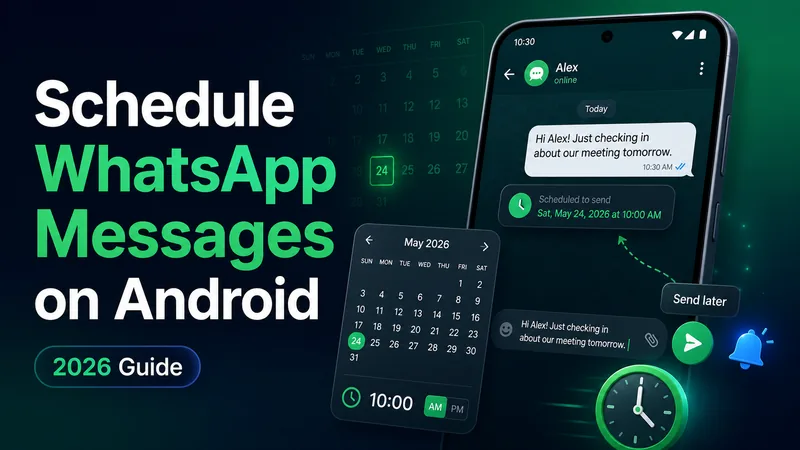
Forgetting to send a midnight birthday wish, missing a follow-up message because you were asleep or trying to message a client in another time zone at the right moment are common WhatsApp problems.
The obvious fix is to schedule the message in advance, like email. WhatsApp does not yet offer a built-in scheduler for everyone on Android, but Android users can still schedule messages today through third-party apps or safer manual reminders.
Not yet for regular personal use. There is no public calendar icon, send later button or scheduling menu inside the standard WhatsApp Android app for everyone.
This may change in the future. WABetaInfo reported that WhatsApp is working on scheduled messages for Android, but the feature is still under development and has no confirmed public release date. You can check the beta report here: WhatsApp beta for Android scheduled messages.
WhatsApp Business already has Greeting Messages and Away Messages, but those are automatic replies triggered by incoming messages. They are not the same as scheduling a message you choose to send at a specific time. If you need one-way updates for a larger audience, how to use WhatsApp Channels is the better guide to read next.
Be the first to send birthday, anniversary or New Year wishes without staying awake until midnight. For caption ideas, browse New WhatsApp Status lines.
Write a message at your convenience and send it when it is morning for someone overseas.
For follow-ups by email, compare email marketing software for automated follow-ups. These platforms serve email campaigns rather than scheduling personal WhatsApp messages.
Schedule reminders, invoice nudges and client check-ins at a consistent time.
Handle regular updates, team messages or family check-ins with less manual effort.
The most common way to schedule WhatsApp messages on Android is through a dedicated scheduling app. SKEDit is one of the widely used free options for this purpose.
WhatsApp does not provide an official personal message scheduling API. Because of that, third-party apps use Android's Accessibility Service to interact with your screen.
In simple terms, Accessibility lets the app open WhatsApp, select a chat, type the message and tap send automatically. This permission is powerful, so you should grant it only to apps you trust and revoke it when you no longer need it. If privacy matters while you test these tools, first learn how to hide your online status on WhatsApp.
If you do not want to install a scheduling app or grant Accessibility permission, use a reminder app instead.
This method is safer for sensitive messages, but it will not send automatically if you are asleep or unavailable. If an important chat disappears while you are managing old reminders, here is how to recover deleted WhatsApp messages.
WhatsApp Business has useful automatic replies, but they work differently from scheduling. Greeting Messages are sent when someone contacts you for the first time or after inactivity. Away Messages are sent when someone messages outside your business hours.
Most scheduling apps offer a usable free tier for occasional personal messages. Paid plans usually remove monthly caps and add more convenience for frequent users.
Good for birthday wishes, occasional reminders and light personal use. Monthly message limits may apply.
Better for business follow-ups, frequent scheduling, recurring messages or heavier use across many contacts.
Once WhatsApp officially launches native message scheduling, it will likely become the safest and simplest option because it should work inside WhatsApp without third-party Accessibility access. Until then, third-party apps and manual reminders remain the practical choices on Android.
Android users can schedule WhatsApp messages today with third-party tools like SKEDit, as long as they understand Accessibility permissions and use trusted apps. If you prefer maximum privacy, the manual reminder method is a safer fallback. Either way, you no longer have to rely only on memory to send WhatsApp messages at the right time.

Compare 10 email marketing platforms for small businesses, including pricing, automation, CRM features, ecommerce tools and free-plan limitations.
New to WhatsApp Channels? Here's a plain-English guide to following, creating, and managing them - what they're for, how they work, and where they fit next to groups.
Want to stay invisible on WhatsApp? Learn how to hide your online status, Last Seen, and Blue Ticks with this complete step-by-step privacy guide for Android and iPhone.
Explore practical guides to hosting, apps and everyday technology.