How to Use WhatsApp Usernames Without Sharing Your Phone Number
Learn how to create and use a WhatsApp username, hide your phone number from new contacts, set a username key, and protect your privacy.
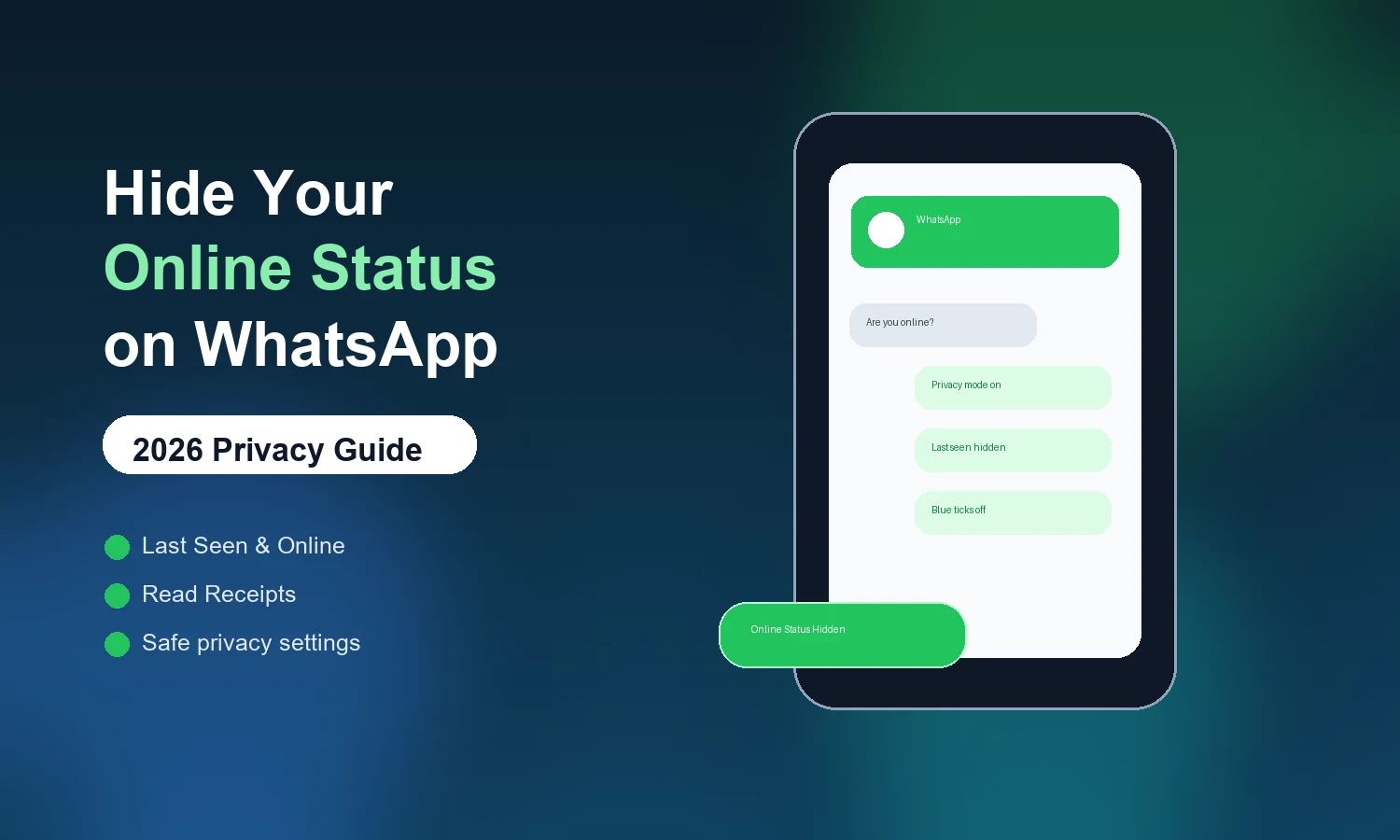
That little online label under your name causes big headaches. The moment you open WhatsApp, people can see you're active - and suddenly there's pressure to reply right away.
The good news: WhatsApp gives you a built-in, official way to control exactly who sees your activity. No hacking, no risky third-party apps, no modified versions. This guide walks through every safe method, setting and workaround to help you take back control of your WhatsApp privacy.
It's worth being clear upfront about what this guide covers and what it doesn't. Every method here uses WhatsApp's own settings or built-in behavior - nothing requires installing a modified app or granting third-party access to your account. That distinction matters, because the invisible mode apps that promise more control than WhatsApp's official settings usually come with real account risk, which this guide addresses further down.
You're not being anti-social - you just want to use WhatsApp on your own terms. Here's what usually drives it.
Read a message without everyone expecting an instant response.
Check chats without getting pulled into long conversations.
Not every contact needs to track when you're active.
Real-time activity shouldn't be visible to hundreds of contacts.
None of these reasons require going fully off-grid. Most people who hide their status still want to be reachable - they just don't want every app-open treated as an invitation to reply immediately. The settings below let you stay reachable on your own schedule without broadcasting your activity in real time.
Most people confuse these two - but controlling both together is what really hides your activity.
Shows in real time, the moment you are actively using WhatsApp.
Shows the last time you opened WhatsApp, even when you're not active now.
WhatsApp manages the Last Seen and Online controls together in privacy settings. You can also read WhatsApp's own explanation of Last Seen and Online privacy.
The reason these two settings get confused so often is that they're visually similar in chat - both show up as a small line of text under someone's name - but they update on completely different triggers. Turning off Online status stops the real-time indicator; it does nothing to the last seen at timestamp, which is why both need adjusting together for full privacy.
The simplest, safest and officially supported method. Wording varies slightly by version, but the idea is the same on both platforms.
This method is the one worth defaulting to for a simple reason: it's the only option on this page that WhatsApp actually supports and maintains. Every other method further down is a workaround for specific situations - replying to one message, or getting online briefly - not a replacement for these core settings.
Want to answer one message without changing your global settings? Reply straight from the notification.
Since you never open the app, your online status is less likely to trigger. Behaviour can vary by phone model and notification settings.
This works best as an occasional workaround rather than a habit - if you're replying from notifications constantly, it's usually a sign you'd rather just turn off Online status globally using Method 1 instead of managing it message by message. For replies you already know you need to send later, it is cleaner to schedule WhatsApp messages on Android.
WhatsApp sends queued messages once your connection returns. Great for quick replies, but you can't load new media or receive real-time messages while offline.
It's also worth remembering this only affects your own visibility, not the content of the conversation - messages you receive while offline still arrive with their original timestamps once you reconnect, so this isn't a way to avoid a paper trail, only a way to reply without appearing online.
Hiding your online status is step one. To also drop the pressure of blue ticks, turn off read receipts.
Combined with hiding your Online status, this closes most of the visibility gaps - people can no longer see when you're active or when you've read their message, though the app still functions normally for everything else.
Linked sessions can affect how visible your activity feels. To stay more private:
Some extensions promise an "invisible mode", but they're third-party tools that WhatsApp does not verify or endorse. Its own privacy controls remain the safest option. If you want a public update space instead of more private chats, you can also use WhatsApp Channels.
If privacy across devices matters to you, it's worth checking your linked devices list periodically anyway, independent of the online-status question - an old linked session you forgot about is a more common privacy gap than anything covered in this guide.
Our recommendation is simple: stick to official WhatsApp privacy settings. They're reliable, safe and easy to change whenever you want.
If a tool promises to show you Online status or Last Seen for people who've hidden theirs from you, treat that as a warning sign rather than a feature - no legitimate app can override WhatsApp's own privacy settings for other users, which means it's either misleading or accessing data it shouldn't. If you lose a chat while testing settings, this guide explains how to recover deleted WhatsApp messages.
Other users can no longer see your Online status or Last Seen in the app. For privacy from people, the in-app settings do exactly what they promise.
For a separate phone-number-privacy step, learn how to use WhatsApp usernames without sharing your number. Hiding online activity does not itself hide your number.
It doesn't stop WhatsApp or Meta from processing the standard technical and usage data needed to run the service - that's a separate, broader topic.
This distinction is worth sitting with for a second: privacy settings control what other users can see in the app, not what WhatsApp or Meta process on their end for the service to function. If your concern is closer to "I don't want to be tracked" rather than "I don't want my contacts to see I'm online," these settings solve the first problem, not the second.
Your activity is personal, and you deserve control over who sees it. Take a couple of minutes to adjust your Last Seen, Online Status and Read Receipts - then browse, read and reply without the online radar following you.
Explore WhatsApp Status Ideas
Learn how to create and use a WhatsApp username, hide your phone number from new contacts, set a username key, and protect your privacy.
New to WhatsApp Channels? Here's a plain-English guide to following, creating, and managing them - what they're for, how they work, and where they fit next to groups.
Learn how to schedule WhatsApp messages on Android using free third-party apps. Step-by-step guide, safety tips and what to expect from WhatsApp's upcoming native scheduler.
Explore practical guides to hosting, apps and everyday technology.