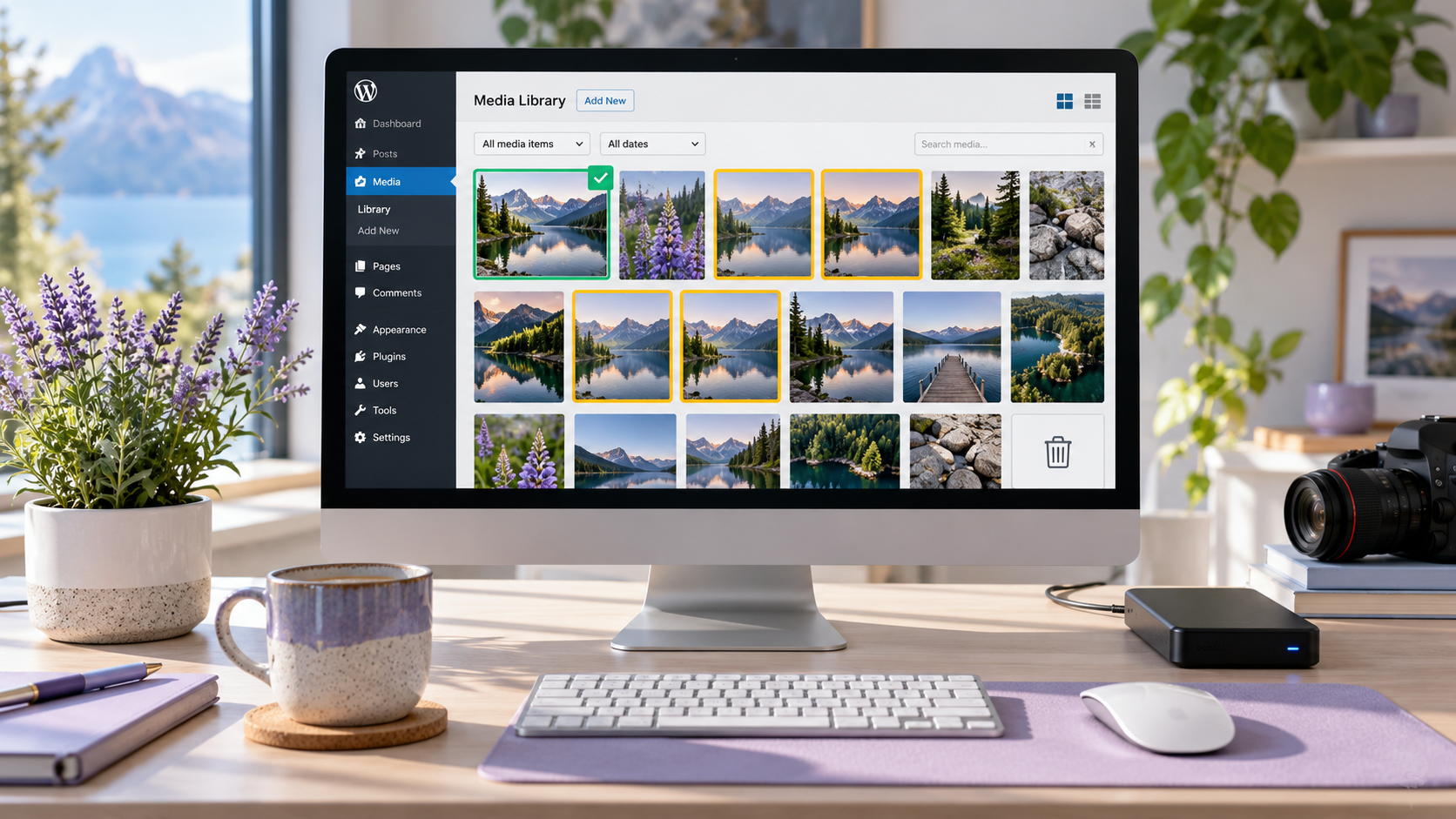
Duplicate images can quietly fill your WordPress Media Library, waste hosting storage, enlarge backups, make media management difficult, and sometimes slow down website maintenance tasks. The safest way to remove them is to use a duplicate-media plugin that scans files, identifies exact duplicates, shows where each image is used, and lets you review or merge the copies before deletion.
Do not delete images blindly based only on filenames or the “Unattached” label. An image can show as unattached in WordPress but still be used in a page builder, featured image, custom field, WooCommerce product, slider, CSS background, or theme setting. WordPress.com notes that unattached media can still be in use.
Cleaning before a host change can reduce transfer size. See our comparison of free WordPress migration plugins for moving a website safely. To clean files on your computer before uploading them, compare free duplicate file finders for Windows and Mac.
What Are Duplicate Images in WordPress?
Duplicate images are copies of the same image file stored more than once in your WordPress Media Library or /wp-content/uploads/ directory.
For example, your media library may contain:
- business-team.jpg
- business-team-1.jpg
- business-team-copy.jpg
- business-team-final.jpg
- business-team-new.jpg
These files may look identical but have different filenames because they were uploaded multiple times. This commonly happens when a website owner, content writer, agency, designer, or developer uploads the same logo, product image, banner, brochure image, or portfolio photo repeatedly.
Duplicate images can also appear when:
- You re-upload the same file instead of selecting it from Media Library.
- Multiple employees upload the same brand assets.
- You migrate a website.
- You import demo content.
- You duplicate pages using a page-builder plugin.
- You import WooCommerce products.
- You change themes.
- You use plugins that generate image copies.
- You upload optimized and unoptimized versions of the same image.
- You create multiple versions for social media, blogs, products, and sliders.
A large Media Library does not always mean that every file is a true duplicate. WordPress automatically generates multiple image sizes—such as thumbnail, medium, large, and custom theme sizes—when you upload one image. These generated sizes are usually necessary for responsive image delivery and should not be deleted as “duplicates.”
Why You Should Remove Duplicate Images
Cleaning duplicate media files can improve website management and reduce unnecessary hosting usage.
Save hosting storage
Images can consume a large amount of disk space, especially on WooCommerce stores, real-estate websites, portfolio sites, restaurant websites, blogs, and websites with high-resolution photography.
If the same 2 MB product image was uploaded 20 times, the files total 40 MB, with 38 MB of redundant copies before WordPress creates thumbnail and responsive-size versions.
Reduce backup size
Most WordPress backups include your uploads folder. Duplicate images make backup files larger, use more cloud storage, and increase the time needed to create or restore backups.
Make Media Library easier to manage
A clean Media Library helps your team find the correct image, logo, product photo, PDF, brochure, or banner quickly. It also reduces the risk of uploading the same image again because you cannot find the original.
Improve content workflow
A structured Media Library makes it easier to maintain brand consistency. Your business can keep one approved version of the logo, one correct product image, and one current staff photo instead of multiple confusing copies.
Reduce migration and maintenance work
When you move a WordPress website to a new host or staging environment, a smaller uploads folder can make the transfer quicker and easier. It also reduces storage-related problems on budget hosting plans.
Before Deleting Any Images
Deleting media from WordPress can break pages, products, blog posts, sliders, galleries, and page-builder sections. Always take safety steps first.
Check recovery before deleting: WordPress does not guarantee a recoverable Media Trash in every configuration. If you see “Delete permanently,” stop and confirm your backup or your plugin’s restore feature first. WordPress documents the conditions for attachment trashing and permanent deletion.
Create a complete backup
Before starting a media cleanup, create a full backup that includes:
- WordPress files.
- Media uploads folder.
- Database.
- Themes.
- Plugins.
- WooCommerce product data.
- Page-builder data.
- Website settings.
Keep at least one backup outside the same hosting server, such as Google Drive, Dropbox, Amazon S3, Wasabi, or another secure cloud location.
Use a staging website if possible
A staging website is a private copy of your live website. It lets you scan, merge, and delete duplicate images without affecting real visitors.
This is especially important if your site uses:
- Elementor.
- Divi.
- WPBakery.
- Bricks.
- Gutenberg custom blocks.
- WooCommerce.
- Advanced Custom Fields.
- Custom post types.
- Sliders.
- Portfolio plugins.
- Product variations.
- Theme options with background images.
Clear cache after cleanup
After deleting or merging media files, clear:
- WordPress cache plugin cache.
- Hosting cache.
- CDN cache.
- Cloudflare cache.
- Browser cache.
Then test the website on desktop and mobile to make sure all images still load correctly.
Best Plugins to Find Duplicate Images Automatically
Several WordPress plugins can scan your Media Library and identify duplicate files. The safest plugins do not permanently delete files immediately. Instead, they identify duplicate groups, let you choose a master copy, update references where possible, and send removed files to a recoverable trash area.
| Plugin | Best For | How It Finds Duplicates | Important Safety Feature |
|---|---|---|---|
| Media Deduper | Exact duplicate files | File hashing and duplicate indexing | Lets you manage duplicate files from Media Library |
| Honeill Media Duplicate Manager | Exact and visually similar images | File analysis and image similarity comparison | Repoints references before optional deletion |
| Mediapapa | Duplicate and unused media cleanup | Identifies duplicate images and reference versions | Shows which versions are safer to remove |
| MediaPilot AI | Large libraries and careful cleanup | MD5 hash for exact copies and perceptual signature for similar images | Restorable workflow and background scans |
| Media Cleaner | Unused and broken media cleanup | Scans Media Library for unused or broken files | Review-before-delete workflow |
| Media Library Tools | Duplicate cleanup plus metadata work | MD5 hash comparison and usage checks | Shows where duplicate images are used |
Option 1: Use Media Deduper for Exact Duplicate Files
Media Deduper is a useful option for finding exact duplicate files in the WordPress Media Library. It can identify duplicate images and attachments, helping you eliminate repeated files and prevent future duplicates.
According to its WordPress.org listing, Media Deduper finds and eliminates duplicate images and attachments. After installation, you can access the duplicate-management screen through Media → Manage Duplicates and generate an index of duplicate files.
How to use Media Deduper
- Log in to your WordPress dashboard.
- Go to Plugins → Add New Plugin.
- Search for Media Deduper.
- Install and activate the plugin.
- Go to Media → Manage Duplicates.
- Start the duplicate scan or generate the duplicate index.
- Review groups of identical files.
- Decide which original image should be kept.
- Check whether duplicate copies are used in posts, pages, products, galleries, or page-builder sections.
- Reassign references before removing confirmed copies. Do not assume the free edition updates every reference; advanced replacement features may require a paid edition.
- Empty the media trash only after testing the website.
This method is best for exact duplicates—files that are identical even if they have different names or were uploaded on different dates.
Option 2: Use Honeill Media Duplicate Manager for Similar Images
Exact duplicate detection is helpful, but some media libraries contain visually similar images that are not byte-for-byte identical. For example, you may have:
- The same image saved at different compression levels.
- The same image with minor cropping.
- A photo with slightly different dimensions.
- Multiple versions of a logo with tiny edits.
- A product photo saved in PNG and JPG formats.
Honeill Media Duplicate Manager can find both exact duplicate images and visually similar images. It allows you to choose a master image, select copies to remove, repoint references to the master image where possible, and then delete the duplicates if you confirm the action.
How to use Honeill Media Duplicate Manager
- Go to Plugins → Add New Plugin.
- Search for Honeill Media Duplicate Manager.
- Install and activate the plugin.
- Open Media → Honeill Duplicate Manager.
- Run an Exact Duplicate Scan first.
- Review each duplicate group.
- Select the best master image to keep.
- Choose the duplicate files to remove.
- Use the merge or reference-repointing process.
- Confirm the deletion only after reviewing the affected references.
- Run a Similar Image Scan afterward.
- Manually review similar-image results before deleting anything.
The plugin’s own documentation emphasizes that nothing is deleted unless you select a copy and confirm the removal.
Important warning
Do not automatically delete visually similar images. Two similar images may both be needed. For example:
- One image may be a homepage banner.
- Another may be a product thumbnail.
- One may be optimized for mobile.
- Another may be a high-resolution print or portfolio image.
- One may be cropped for Instagram.
- Another may be a full-size website image.
Treat similar-image detection as a review tool, not an automatic deletion tool.
Option 3: Use MediaPilot AI for Exact and Similar Image Cleanup
MediaPilot AI is useful for websites with larger Media Libraries because it offers both duplicate scanning and a restorable cleanup workflow.
According to its plugin listing, MediaPilot AI can scan for exact duplicates using MD5 hash comparison and visually similar images using a 64-bit perceptual signature. It also allows you to configure scan scope, batch size, and image filters before beginning the scan.
How to use MediaPilot AI
- Install and activate MediaPilot AI.
- Open its Media Library cleanup or duplicate-finder dashboard.
- Configure the scan scope.
- Start with exact duplicate scanning.
- Review the duplicate groups.
- Keep the image that is already used most often, where appropriate.
- Send confirmed duplicates to a restorable trash.
- Test the main website pages.
- Run the visual-similarity scan only after exact duplicates are handled.
- Review potential matches manually.
- Restore any image if you notice a problem.
- Permanently delete files only after the testing period is complete.
For agencies managing client websites, this review-first approach is much safer than deleting many images at once.
Option 4: Use Media Cleaner for Unused Media Files
Media Cleaner is often used to identify unused, broken, or orphaned media files. It is not only a duplicate-image tool, but it can be valuable as part of a wider Media Library cleanup.
Media Cleaner’s official listing describes unused-media detection and an internal trash workflow. Check compatibility with your theme and page builder, including any features that require a paid edition, before relying on scan results.
How to use Media Cleaner carefully
- Take a complete website backup.
- Install and activate Media Cleaner.
- Open the Media Cleaner dashboard.
- Run a scan.
- Review unused and broken-media results.
- Do not delete every result immediately.
- Test whether the image is used in:
- Elementor or other page-builder templates.
- Divi modules.
- WooCommerce products.
- Product variations.
- Sliders.
- Theme customizer settings.
- CSS backgrounds.
- Featured images.
- ACF or custom fields.
- Header and footer templates.
- Move confirmed unused files to trash.
- Test key pages after removal.
- Permanently delete only after a waiting period.
Why “unattached” does not mean unused
WordPress assigns an attachment relationship when you upload an image while editing a specific post or page. But many website builders, themes, and plugins use images in ways that do not create this relationship.
For this reason, an image marked Unattached may still be visible on your website. WordPress.com specifically warns against assuming unattached media is safe to delete.
Manual Method: Delete Duplicate Images from Media Library
For small websites with fewer than 100–200 media files, manual cleanup may be sufficient.
Steps
- Go to Media → Library in WordPress.
- Switch to List View for easier sorting.
- Use the available search, date and media-type filters; sorting options vary by view and installed plugins.
- Search for repeated filenames such as:
- logo.jpg
- logo-1.jpg
- logo-2.jpg
- banner-copy.jpg
- product-final.jpg
- Open each image and check where it is used.
- Keep the highest-quality correct version.
- Move unwanted copies to a confirmed recoverable trash, if available. If only permanent deletion is offered, retain the files until backups and replacements are verified.
- Test pages where the image may have been used.
- Permanently delete images only after confirming there are no broken images.
WordPress allows you to select Media Library items through Bulk Select and delete selected files.
Manual deletion is slower, but it gives you full control and is useful for a basic business website where the Media Library is manageable.
How to Choose Which Duplicate Image to Keep
When a duplicate-image tool shows several copies, keep the best master file—not necessarily the oldest file.
Choose the image that has:
- The correct filename.
- The best quality.
- Correct dimensions.
- The original source version.
- Proper alt text.
- The most existing website references.
- The correct image format.
- The right compression level.
- The correct branding or logo variation.
- The clearest copyright or licensing status.
For example, if you have five copies of your company logo, keep the one with:
- Transparent PNG or SVG format, if appropriate.
- Correct current branding.
- Clean filename, such as imoodsy-logo.png.
- Correct dimensions.
- Existing usage across your website.
Avoid deleting the image that is used as a logo, favicon, Open Graph image, featured image, WooCommerce product image, slider image, or background image until you confirm a replacement is properly assigned.
Exact Duplicates vs Similar Images
Understanding the difference helps you clean up safely.
Type Meaning Can It Be Deleted Automatically?
| Exact duplicate | Same file content, even if filename differs | Review and repoint references before removal |
|---|---|---|
| Filename duplicate | Similar filename but possibly different image | Never assume; inspect manually |
| Same image, different dimensions | One image resized or cropped | Usually keep both if they serve different layouts |
| Same image, different compression | Image may look the same but file differs | Review manually |
| Similar-looking image | Visually similar but not identical | Manual review required |
| WordPress-generated size | Thumbnail, medium, large, responsive variant | Do not delete manually |
| Unattached image | Not formally attached to a post | Not automatically safe to delete |
Do Not Delete These Images Automatically
Be cautious with the following types of images:
- WordPress-generated thumbnails.
- Responsive image sizes.
- WooCommerce product-gallery images.
- Product variation images.
- Featured images.
- Site logo and favicon.
- Open Graph and social sharing images.
- Header and footer images.
- Images used in page-builder templates.
- Slider and carousel images.
- Background images in theme settings.
- CSS background images.
- Images used in popups.
- Images used in email templates.
- Images referenced from custom fields.
- Images used in downloadable PDFs or brochures.
- Images used by multilingual plugins.
- Images used on external websites through direct URLs.
Deleting these files without checking can lead to blank product images, broken homepage banners, missing logos, empty sliders, social-preview problems, and broken layouts.
Best Practice: Use a Staged Cleanup Process
The safest automatic workflow is not “scan and delete everything.” Use a staged process.
Step 1: Back up the website
Create a full files-and-database backup and store it outside the hosting server.
Step 2: Scan exact duplicates
Start with byte-for-byte identical files. These are the safest candidates for cleanup.
Step 3: Select a master image
Choose the correct original or most-used image in each duplicate group.
Step 4: Repoint references where supported
Use a plugin that can update references from duplicate files to the master image. This is safer than deleting a file and hoping nothing breaks.
Step 5: Move duplicate images to trash
Do not permanently delete files immediately. Use a recoverable trash or recycle-bin period.
WordPress’s wp_delete_attachment() function uses Trash only when media trash and a nonzero trash retention period are enabled, the attachment is not already trashed, and force deletion is not requested. Otherwise, deletion can be permanent. A plugin’s own recoverable trash is a separate feature.
Step 6: Test the website
Check:
- Homepage.
- Service pages.
- Blog posts.
- Product pages.
- Categories.
- Portfolio pages.
- Header and footer.
- Contact page.
- Mobile design.
- Social preview images.
- E-commerce cart and checkout.
- Email templates, if applicable.
Step 7: Clear cache
Clear your WordPress cache, CDN cache, hosting cache, and browser cache.
Step 8: Permanently delete after testing
Wait at least a few days for a small brochure website, or one to two weeks for a larger e-commerce or business website. If no problems appear, permanently delete the confirmed duplicate files.
How to Prevent Duplicate Images in WordPress
Cleaning duplicate files once is helpful, but preventing future duplicates saves more time.
Create a media-upload process
Give your team simple rules:
- Search the Media Library before uploading a new image.
- Use one folder or asset list for approved logos and brand files.
- Use consistent filenames.
- Do not upload “final-final-new.jpg” versions repeatedly.
- Use descriptive filenames, such as mehsana-web-development-office.jpg.
- Upload correctly optimized images before adding them to WordPress.
- Do not upload the same image separately for every blog post.
- Reuse existing Media Library assets where appropriate.
Use consistent naming
Good filenames make duplicate detection easier.
Use:
- website-development-mehsana.jpg
- wordpress-maintenance-checklist.jpg
- imoodsy-logo-dark.png
- ecommerce-website-gujarat.webp
Avoid:
- IMG_4573.jpg
- image-final.jpg
- new-image-2.jpg
- download.jpg
- Screenshot-2026-10-01.png
Set image-size rules
For example:
| Image Type | Suggested Rule |
|---|---|
| Blog featured image | 1200 × 630 px or your chosen consistent ratio |
| Website banner | Optimized WebP/AVIF, sized for actual display |
| Product image | Consistent square or portrait dimensions |
| Logo | SVG or optimized PNG where appropriate |
| Team photos | Same size, crop, and background style |
| Portfolio images | Compressed and resized before upload |
When your team uses consistent dimensions, there is less need to upload many slightly different copies of the same image.
Use image optimization before upload
Compress and resize images before uploading. A duplicate-media tool can remove repeated files, but it cannot solve an inefficient image workflow.
Use modern formats where supported:
- WebP for many website images.
- AVIF where your hosting, CDN, and browser support make it practical.
- SVG for logos and simple vector graphics, with proper security controls.
- JPEG for photographs where WebP or AVIF is not suitable.
- PNG only when transparency is needed.
Frequently Asked Questions
Can WordPress automatically detect duplicate images?
WordPress core does not provide a complete duplicate-image finder by default. You can use a plugin such as Media Deduper, Honeill Media Duplicate Manager, Mediapapa, MediaPilot AI, or Media Cleaner to scan your Media Library and identify duplicate or unused images.
Is it safe to delete duplicate images in WordPress?
It can be safe if you create a complete backup, identify exact duplicates, check where the files are used, choose a master image, use a recoverable trash workflow, and test the website before permanently deleting files.
It is not safe to delete images simply because they are labeled “Unattached” or have similar filenames.
Will deleting duplicate images improve website speed?
Removing unused duplicates mainly saves hosting storage and makes backups smaller. It may not significantly improve front-end page speed unless your website was actually loading those duplicate images or suffering from storage and maintenance issues.
Storage cleanup and page speed are different tasks. Our comparison of WordPress caching plugins for faster page delivery covers caching options.
For better website speed, also optimize image dimensions, compress files, use WebP or AVIF where appropriate, enable caching, use a CDN, and reduce unnecessary plugins and scripts.
Should I delete WordPress thumbnail sizes?
No. WordPress automatically creates different image sizes for responsive layouts and theme requirements. Those files are not normally duplicate uploads. Deleting them manually can create missing images and layout problems.
How often should I clean duplicate images?
For a small business website, perform a duplicate-media review every six to twelve months. For e-commerce stores, agencies, real-estate websites, publishers, or websites that upload many images every week, consider a quarterly review.
As part of your wider maintenance review, find and fix orphan pages with a WordPress internal-link audit. An orphan page is a navigation issue, whereas an unused image is a media-usage issue.
Final Thoughts
The best way to find and delete duplicate images in WordPress automatically is to use a trusted Media Library cleanup plugin, scan exact duplicates first, choose a master image, confirm image usage, and use a trash-and-review workflow before permanent deletion.
For most WordPress websites, start with Media Deduper for exact duplicates or Honeill Media Duplicate Manager if you need duplicate detection plus reference repointing. For larger media libraries, tools such as MediaPilot AI, Mediapapa, and Media Cleaner can support a wider cleanup process.
Never rush the deletion process. A few gigabytes of saved storage are not worth broken product pages, missing banners, empty sliders, or damaged website layouts. Back up first, clean carefully, test thoroughly, and maintain a consistent image-upload process so duplicates do not return.