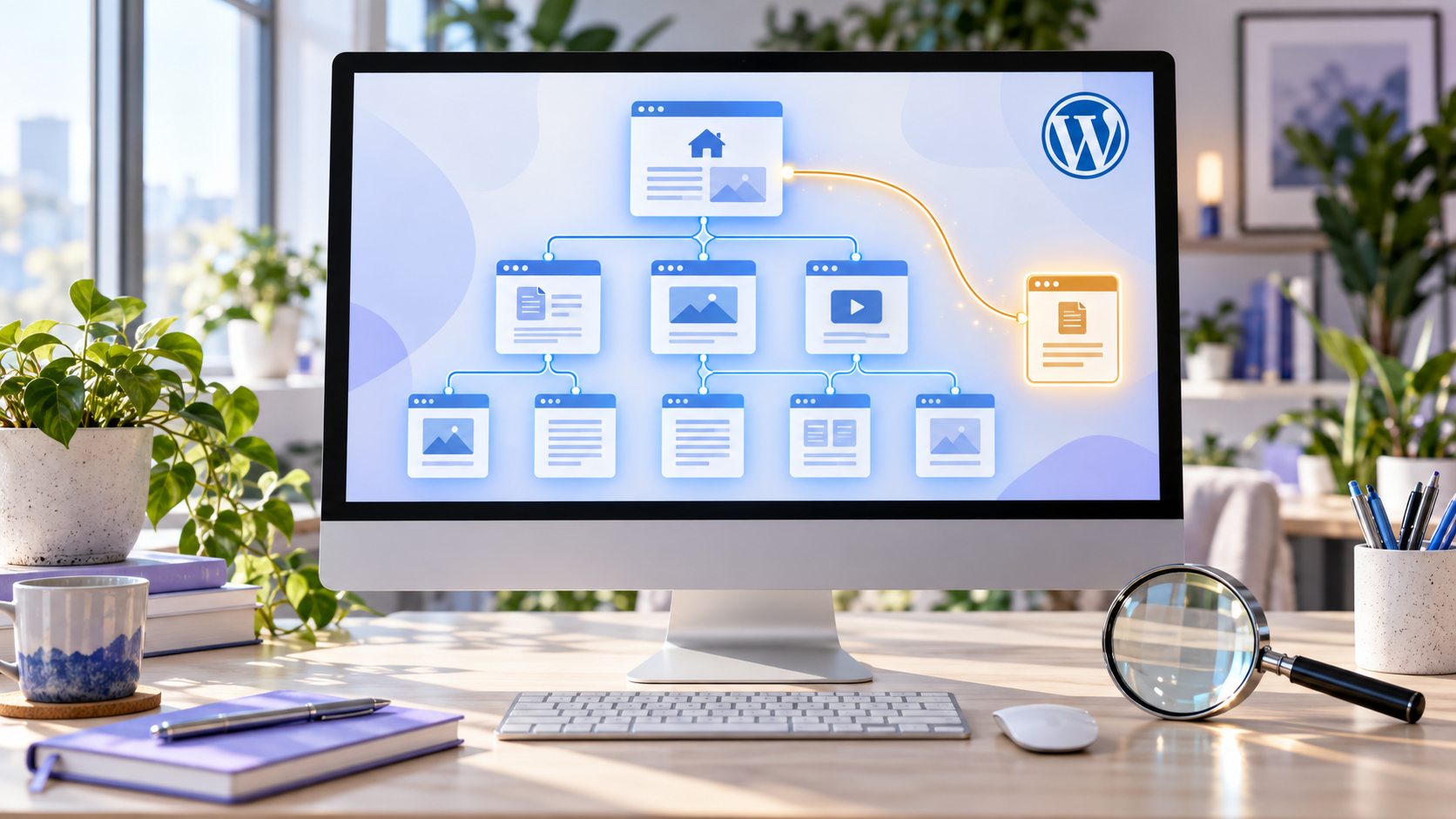
Orphan pages are WordPress pages or posts that have no internal links pointing to them from anywhere else on your website. They can still appear in Google through your XML sitemap, external backlinks, or a direct URL—but they are harder for users and search engines to discover naturally.
To fix orphan pages, first identify them through an SEO audit or sitemap crawl, then decide whether to add relevant internal links, improve and keep the page, merge it with a stronger page, redirect it, or remove it. Google recommends that every important page should be reachable through a crawlable link from at least one other page on your site.
After moving a site, use our guide to free WordPress migration plugins for moving hosts or domains, then audit internal links on the destination. For a new server, follow the step-by-step WordPress installation guide for a Contabo VPS before checking crawlability.
What Are Orphan Pages?
An orphan page is a live URL on your website that receives zero internal links from other pages, posts, categories, menus, footer links, related-post blocks, or other crawlable areas of the site.
For example, imagine you publish this blog article:
yourwebsite.com/website-maintenance-checklist/
If no blog post, service page, category archive, navigation menu, sidebar, footer, homepage section, or related-content area links to it, the article is orphaned.
Visitors may reach it from Google Search, a social-media post, a WhatsApp link, or an advertisement. But once they land on it, it may be disconnected from the rest of your site structure—and Google may have fewer signals that the page is important.
Googlebot primarily discovers new URLs by following links from pages it has already crawled. Google also states that every page you care about should have at least one link from another page on the same site.
Why Orphan Pages Matter for SEO
Orphan pages are not automatically bad. A thank-you page after a form submission, a private landing page for a paid ad campaign, a login page, or a temporary campaign URL may intentionally have few or no internal links.
However, unintentional orphan pages can create SEO and user-experience problems.
1. Search engines may discover them less reliably
Google can find pages through sitemaps, external links, redirects, and links from other sites. But internal links are a major discovery method. Google explains that it finds URLs by parsing links, sitemaps, and redirects; it also advises making all important pages reachable from another findable page.
If an important service page has no internal links, Google may crawl it less often or treat it as less connected to your website’s main topics.
2. Internal authority is not passed to the page
Internal links help distribute context and importance across a website. A page with no internal links cannot receive internal link signals from your homepage, service pages, popular blogs, category pages, or high-traffic content.
For example, if your “Website Development Services in Mehsana” page links to your “Website Maintenance Checklist” article, users and search engines can understand that the article is related to your web development and maintenance expertise.
3. Visitors cannot easily find the page
SEO is not only about Google. If a useful article is not in your blog archive, categories, related articles, sitemap navigation, or service-page links, real visitors may never discover it.
A good internal link helps users continue their journey:
- From a web development service page to website-cost articles.
- From an SEO article to a Google Business Profile guide.
- From an e-commerce page to a WooCommerce checklist.
- From a security article to an SSL certificate guide.
- From a blog post to your relevant service page or quote form.
4. Your website structure becomes confusing
A website with many isolated pages can become difficult to manage. Old landing pages, deleted service pages, duplicate blogs, test pages, abandoned category archives, and forgotten product pages may remain indexable without contributing to your marketing goals.
An orphan-page audit is therefore also a website-cleanup exercise.
Google recommends making important pages reachable through internal links. See Google’s guidance on crawlable links and descriptive anchor text.
How to Find Orphan Pages in WordPress
The most reliable method is to compare the URLs that exist in your sitemap or Google Search Console with the URLs found during an internal crawl of your website.
An internal crawler starts at your homepage and follows links. If a URL exists in your sitemap or Google’s index but the crawler cannot reach it through internal links, it may be an orphan page.
Method 1: Use an SEO Plugin
Some WordPress SEO plugins offer internal-linking reports or orphan-content reports.
Rank Math Pro
Rank Math Pro can identify posts with no internal links through its Link Counter feature.
- Log in to your WordPress dashboard.
- Go to Posts or Pages in the WordPress dashboard.
- Open the Rank Math filter above the posts or pages list.
- Select the orphan-posts filter, if available in your edition, and apply it.
- Review posts and pages that show zero inbound internal links.
- Check whether each URL should be kept, linked, redirected, or removed.
Do not treat every zero-link page as a problem. Review the page purpose first.
Yoast SEO Premium
Yoast SEO Premium also offers an orphaned-content assessment. It can identify posts that do not receive internal links from other pages and posts on your website.
This is useful for smaller business websites, blogs, and WordPress sites where you regularly publish articles but do not have hundreds of thousands of URLs.
Link Whisper
Link Whisper is an internal-linking tool that can find internal-link opportunities and help identify orphaned content. It is useful for content-heavy websites, agency blogs, publishers, and businesses with many articles.
The WordPress.org listing for Link Whisper describes its purpose as helping users find internal-linking opportunities and build internal links more efficiently.
Tool definitions differ: Yoast’s workout may include older pages with few links, rather than only URLs with zero links. Consult the Yoast workout definitions and Rank Math orphan-page instructions for your setup.
Important limitation
Plugin reports may not always capture every type of link, especially links added through custom code, page builders, JavaScript, external menus, or unusual theme structures. Use plugin data as a helpful starting point, not as your only source of truth.
Method 2: Use Screaming Frog
Screaming Frog SEO Spider is one of the most reliable ways to find orphan pages, especially for agencies and larger websites.
The basic idea is:
- Crawl your WordPress website normally.
- Connect Google Search Console data.
- Import your XML sitemap.
- Compare crawled URLs with sitemap and Search Console URLs.
- Review URLs that exist but cannot be reached through normal internal links.
Step-by-step process
- Open Screaming Frog SEO Spider.
- Enter your website homepage URL.
- Run a full crawl in Spider Mode.
- Go to Configuration → API Access → Google Search Console.
- Connect the correct Search Console property.
- Enable Crawl Linked XML Sitemaps under Configuration → Spider → Crawl.
- Add your XML sitemap URL in the sitemap crawl settings.
- Run crawl analysis after the crawl is complete.
- Open the Sitemaps and Search Console reports.
- Filter for URLs identified as orphan pages.
- Export the list to a spreadsheet for review.
Screaming Frog can identify URLs found through sources such as XML sitemaps and Search Console that do not appear in the normal internal crawl. This helps reveal pages that Google knows about but users cannot reach through your internal navigation.
For the current configuration and analysis steps, follow the Screaming Frog orphan-page tutorial. Some integrations require a paid licence.
Best use case
Use Screaming Frog if:
- Your website has more than 100 pages.
- You manage a WooCommerce store.
- You have many blogs, categories, products, tags, and media pages.
- You run a web development agency.
- You are performing a full technical SEO audit.
- Your site has been redesigned or migrated.
- You have published many old landing pages.
Method 3: Use Semrush Site Audit
Semrush Site Audit can identify orphaned pages by comparing crawl results with sitemap URLs. Its available integrations and reports may also help uncover additional URLs.
Typical process:
- Create a project in Semrush.
- Open Site Audit.
- Configure the website crawl.
- Configure the sitemap comparison and any supported analytics integration you need.
- Add your XML sitemap.
- Run the audit.
- Open the Issues tab.
- Search for “orphan.”
- Review the URLs flagged as orphan pages.
- Export the list and decide what action each URL needs.
This is a good option when you also want to audit duplicate content, broken links, redirects, site health, HTTPS issues, crawlability, and other technical SEO problems in one dashboard.
Report availability can vary by subscription and configuration; see Semrush’s internal-linking and sitemap audit documentation.
Method 4: Use Google Search Console and Your XML Sitemap
Indexing statuses are not proof of orphaning. Check actual incoming links before deciding that a URL is an orphan.
Google Search Console cannot directly display a complete “orphan page” report. However, it can help you discover possible orphan or near-orphan pages.
Look for these clues
- Open Google Search Console.
- Go to Indexing → Pages.
- Review indexed, excluded, and not-indexed URLs.
- Look for pages marked as:
- Discovered – currently not indexed.
- Crawled – currently not indexed.
- Duplicate without user-selected canonical.
- Not found (404).
- Page with redirect.
- Check whether important pages appear in your sitemap.
- Use URL Inspection to check individual URLs.
A page listed in your sitemap but receiving no internal links may be discovered by Google but not strongly prioritized for crawling or indexing. Internal links can help Google understand which pages are important.
Google explains that a sitemap helps provide information about important website URLs and their relationships, but it does not replace a clear internal-link structure.
Manual sitemap comparison
For a small WordPress website, you can manually review the XML sitemap:
- Open your sitemap URL, such as
yourdomain.com/sitemap_index.xmloryourdomain.com/wp-sitemap.xml. - Copy important page and post URLs into a spreadsheet.
- Crawl the site using a tool or review your navigation and internal links manually.
- Identify URLs that are in the sitemap but do not appear in menus, blog archives, category pages, related posts, or contextual links.
- Review whether those pages should remain live.
This manual approach is slower, but it works for a site with 20–50 important URLs.
Method 5: Check WordPress Pages and Posts Manually
For small business sites, a manual review is often enough.
Go to:
- Pages → All Pages
- Posts → All Posts
- Products → All Products, for WooCommerce
- Media → Library
- Appearance → Menus
- Appearance → Editor, for block themes
- Your SEO plugin’s sitemap settings
Create a spreadsheet with these columns:
| URL | Page Type | Receives Internal Links? | Traffic/Impressions? | Keep, Improve, Redirect, or Delete? | Action Taken |
|---|---|---|---|---|---|
| /website-maintenance-checklist/ | Blog post | No | Yes | Keep and improve | Link from security and WordPress blogs |
| /old-web-design-offer/ | Landing page | No | No | Redirect | 301 redirect to web design service |
| /thank-you/ | Thank-you page | No | No | Keep private | Add noindex if appropriate |
| /old-product-name/ | Product page | No | Low | Redirect | 301 redirect to updated product |
This method forces you to make strategic decisions rather than blindly adding links to every URL.
How to Fix Orphan Pages
Once you find orphan pages, do not simply add a random link from the footer to every page. The correct action depends on the value and purpose of the page.
Fix 1: Add Relevant Contextual Internal Links
For useful pages that deserve to rank, add relevant internal links from existing pages and posts.
The strongest internal links are usually contextual links placed naturally within relevant content.
For example, if you have an orphan article titled:
“How to Find and Fix Orphan Pages in WordPress”
You could link to it from:
- Your WordPress Website Maintenance Checklist article.
- Your SEO Services in Mehsana page.
- Your Technical SEO Checklist article.
- Your Website Audit Services page.
- A blog post about internal linking.
- A guide on Google Search Console.
Use descriptive anchor text such as:
- “find and fix orphan pages in WordPress”
- “WordPress internal-linking audit”
- “technical SEO maintenance checklist”
- “improve internal links for better crawlability”
Avoid vague anchor text such as “click here” or “read more” when a more descriptive phrase is possible.
Google recommends using crawlable <a> links with an href attribute and descriptive anchor text. Google also says that every page you care about should have a link from at least one other page on your website.
How many internal links should an orphan page receive?
There is no fixed number. For most important pages, aim for at least:
- One relevant internal link from a closely related page.
- One link from a category, hub, service, or resource page where appropriate.
- One or more links from related blog posts, if naturally useful.
Do not force links where they do not help readers. Relevance matters more than quantity.
Fix 2: Add the Page to a Relevant Category or Hub Page
A hub page is a central page that links to related resources.
For example, your agency website could have hub pages such as:
- Website Development Resources.
- Local SEO Guides.
- WordPress Maintenance Guides.
- E-Commerce Website Guides.
- Google Ads Resources.
- Website Security Resources.
Your WordPress maintenance hub could link to:
- Website Maintenance Checklist.
- Which Outdated Plugins Pose the Highest Security Risks?
- How to Find and Fix Orphan Pages in WordPress.
- SSL Certificate Guide.
- Website Security Checklist.
- WordPress Speed Optimization Guide.
This creates a clear content structure for visitors and helps search engines understand topic relationships.
Fix 3: Add Links From Service Pages
Many businesses link only from blog posts to other blog posts. That misses a major opportunity.
If you publish a blog article that supports one of your services, link it from the relevant service page.
For a web agency, examples could include:
| Orphan Blog Article | Good Page to Link From |
|---|---|
| Website Maintenance Checklist | Website Maintenance Services |
| Website Cost in India | Website Development Services |
| Best WordPress Themes | WordPress Website Development |
| Best Cloud Hosting Providers | Web Hosting or Website Maintenance Services |
| SSL Certificate Providers | Website Security Services |
| Orphan Pages in WordPress | SEO Services or Technical SEO Services |
| Google Business Profile Guide | Local SEO Services |
| WooCommerce Checklist | E-Commerce Website Development |
This improves the visitor journey and creates a stronger connection between helpful content and your commercial services.
Fix 4: Improve and Re-Publish Valuable Old Content
Some orphan pages are not linked because they are old, thin, inaccurate, or forgotten. If the topic is still useful, refresh it before adding links.
Improve the page by:
- Updating outdated information.
- Adding original examples.
- Improving headings.
- Adding relevant FAQs.
- Including screenshots or visuals.
- Adding practical steps.
- Adding internal links to related resources.
- Linking back to relevant service pages.
- Improving title and meta description.
- Checking mobile layout.
- Adding a clear call to action.
For example, if you have an old article titled “Best WordPress Themes 2023,” update it into “Top 10 Best WordPress Themes in 2026,” revise the theme list, update feature details, and then link it from your WordPress development service page and related blog posts.
Fix 5: Merge Duplicate or Weak Pages
If two or more pages target the same topic, keeping all of them may create thin or duplicate content.
For example, you may have:
- “Website Design Cost in India”
- “Business Website Price in India”
- “How Much Does a Website Cost?”
- “Website Development Charges in Gujarat”
If each article is short and overlapping, consider merging them into one comprehensive guide:
“How Much Should a Business Website Cost in India? A Realistic Breakdown”
Then 301 redirect the weaker URLs to the final consolidated article.
This gives users one stronger resource and avoids maintaining multiple weak pages.
Fix 6: Use a 301 Redirect for Obsolete Pages
If an orphan page is outdated and has no value on its own, redirect it to the most relevant active page.
Use a permanent 301 redirect when:
- A service is no longer offered.
- A product has been discontinued.
- An old blog article has been replaced by a better guide.
- A campaign page has expired but has useful backlinks.
- A URL changed during a redesign.
- A duplicate page was merged into a stronger page.
Examples:
- Old “Website Design Offer 2024” page → Website Development Services page.
- Old “WordPress Themes 2023” article → Updated WordPress Themes 2026 article.
- Old product URL → Most relevant current product or category.
- Old Mehsana service landing page → Updated Mehsana web development page.
Do not redirect every old page to the homepage. Redirect users to the closest relevant replacement. If no relevant replacement exists and the page has no backlinks, traffic, or business value, a proper 404 or 410 response may be more appropriate.
Fix 7: Add noindex to Pages That Should Not Rank
Some pages are intentionally not linked internally because they are not meant to appear in search results.
Examples include:
- Thank-you pages after contact forms.
- Internal test pages.
- Private campaign pages.
- Duplicate confirmation pages.
- Customer login pages.
- Checkout success pages.
- Password-reset pages.
- Internal documents.
- Thin tag archives.
- Search-result pages.
For these pages, consider using noindex through your SEO plugin. This tells search engines not to include the page in search results.
Noindex is not access control. Protect private documents and account areas with authentication. Search engines must be able to crawl a page to see its noindex directive; blocking it in robots.txt can prevent that.
Do not use noindex on important service pages, product pages, blog posts, or location pages that you want to rank.
Fix 8: Delete Pages That Have No Purpose
Sometimes the best fix is deletion.
Delete a page if it is:
- A test page.
- A duplicate draft published accidentally.
- Thin content with no value.
- Old event information.
- An expired promotion with no replacement.
- A forgotten staging or demo page.
- A low-quality tag archive.
- An irrelevant old service page.
- A page created by a removed plugin.
Before deleting, check whether the page has search impressions, clicks, backlinks, leads, paid-ad traffic, or social-media links. If it does, consider a 301 redirect instead.
Common Orphan Page Mistakes
Adding every orphan page to the main navigation
Your menu should help visitors find your core pages. Adding dozens of blog posts, outdated services, and low-value pages to the main navigation makes the website harder to use.
Use contextual internal links, hub pages, categories, related-post sections, and service-page links instead.
Linking randomly from unrelated pages
Do not add a link to a WordPress security article from an unrelated restaurant-menu page just to remove an orphan-page warning.
Internal links should be useful and contextually relevant.
Keeping outdated content only because it has a URL
A page does not need to remain live forever. If it is obsolete, inaccurate, duplicate, or irrelevant, improve it, merge it, redirect it, noindex it, or delete it.
Assuming sitemap inclusion is enough
An XML sitemap helps search engines discover URLs, but it does not replace clear site architecture. Important pages should still have internal links.
Forgetting pages created outside WordPress
Orphan URLs may come from:
- Landing-page builders.
- WooCommerce products.
- Product variation pages.
- PDF files.
- Old campaign pages.
- Page-builder templates.
- Tag archives.
- Author archives.
- Custom post types.
- Removed plugins.
- Staging environments accidentally indexed.
Check beyond the regular Pages and Posts screens.
How to Prevent Orphan Pages in WordPress
The best solution is to prevent orphan pages before publishing them.
Use this publishing checklist for every new page or blog post:
- Add at least one link from an existing relevant page or post.
- Add links to related pages within the new content.
- Assign the post to a relevant category.
- Add the post to a resource hub or blog archive.
- Link to the page from a relevant service page where appropriate.
- Check that the page appears in the XML sitemap.
- Review the URL in Google Search Console after publishing.
- Add descriptive internal-link anchor text.
- Include useful links to related articles.
- Decide whether the page should be indexed or marked noindex.
- Update older relevant articles to link to the new page.
- Test all links on mobile and desktop.
For websites that publish content regularly, perform an orphan-page audit every three to six months. For e-commerce websites, large blogs, publishers, and agencies managing many client websites, run the audit monthly or quarterly.
Final Thoughts
Orphan pages in WordPress are pages that receive no internal links. They can be harder for visitors and Google to discover, may receive less internal relevance and authority, and can create a messy website structure.
The best way to find them is by comparing your XML sitemap and Google Search Console URLs with a website crawl using tools such as Screaming Frog, Semrush, Rank Math Pro, Yoast SEO Premium, or Link Whisper. Once you find them, do not apply one fix to every page.
For each orphan page, decide whether to:
- Add relevant internal links.
- Include it in a hub page or category.
- Link to it from a related service page.
- Improve and refresh the content.
- Merge it into a stronger article.
- Redirect it to a relevant replacement.
- Add noindex.
- Delete it.
A well-structured WordPress website makes it easy for users and search engines to move from one useful page to another. That structure can improve crawlability, strengthen topical relevance, support SEO, and help more visitors become enquiries or customers.
During a WordPress maintenance review, find and safely remove duplicate images from the WordPress Media Library to reduce storage use while preserving images that your pages still need.