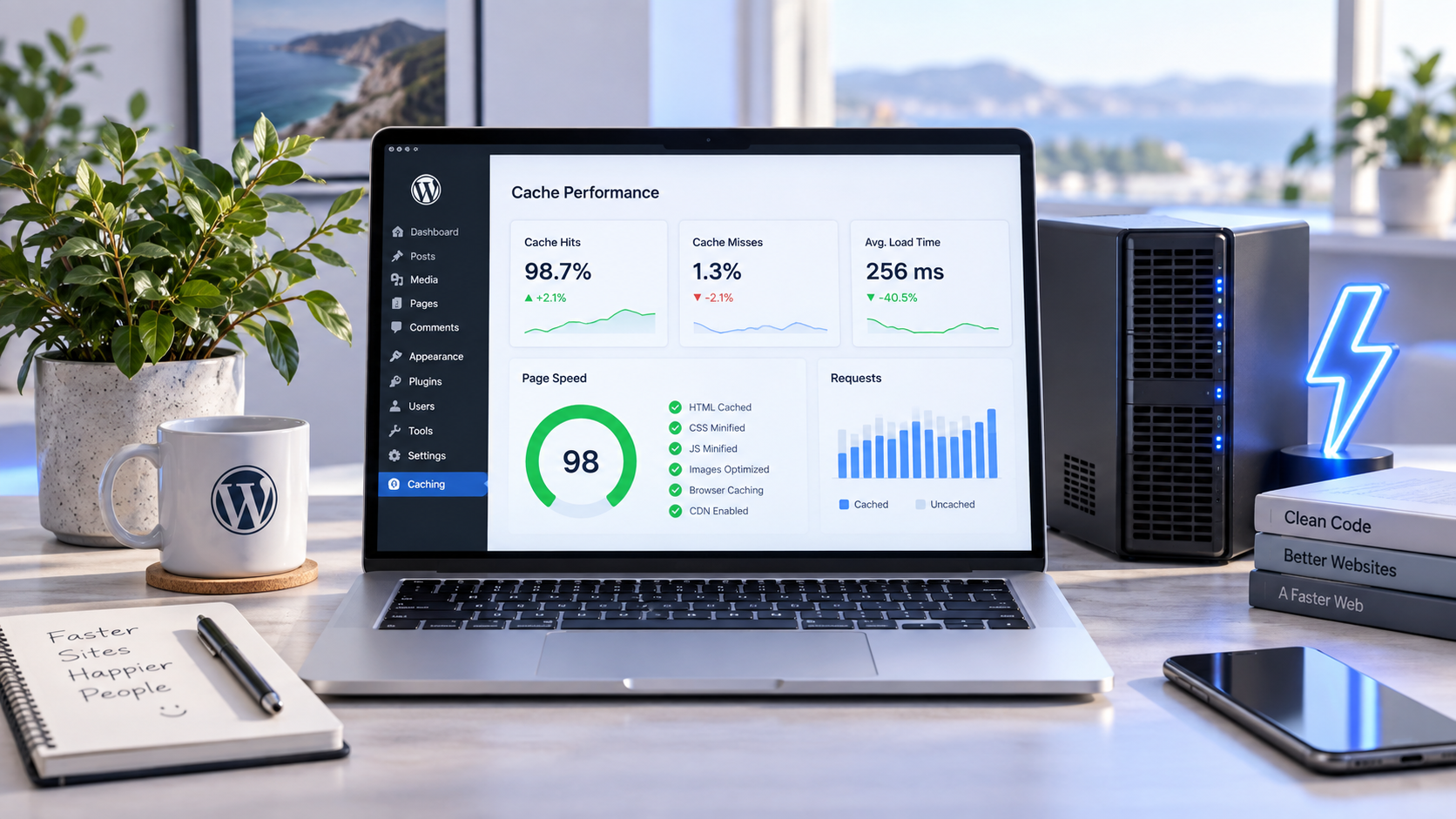
A slow WordPress website can lose visitors before the page finishes loading. It can also increase server costs, hurt conversions, and make content management frustrating.
The best WordPress caching plugin stores ready-to-serve versions of your pages so the server does not rebuild every page request through PHP and the database. Modern plugins also optimize CSS, JavaScript, images, browser caching, and content delivery networks (CDNs).
For most websites, WP Rocket is the best premium option because it is easy to configure. LiteSpeed Cache is the best free choice when your host runs LiteSpeed or OpenLiteSpeed. WP Super Cache is the safest simple option for basic websites, while FlyingPress is a strong choice for Core Web Vitals.
If you are still choosing an origin server, our WordPress hosting comparison for server performance and renewal costs helps you assess the environment your cache will run on.
Best WordPress caching plugins
| Plugin | Best for | Price model | Page cache | Key strength |
|---|---|---|---|---|
| WP Rocket | Most WordPress sites | Paid | Yes | Easy setup and strong defaults |
| LiteSpeed Cache | LiteSpeed hosting | Free | Server-level on LiteSpeed | Deep server integration |
| WP Super Cache | Simple blogs | Free | Static HTML | Reliable and lightweight |
| W3 Total Cache | Developers | Free and Pro | Yes | Broad cache and CDN controls |
| FlyingPress | Core Web Vitals | Paid | Yes | Performance-focused optimization |
| WP Fastest Cache | Beginners wanting free caching | Free and Pro | Yes | Simple interface |
| Cache Enabler | Lightweight sites | Free | Disk-based | Minimal configuration |
| Autoptimize | Asset optimization | Free and paid services | No complete page cache | CSS and JavaScript optimization |
| NitroPack | Managed performance | Free and paid plans | Cloud-based | Automated optimization |
| Hummingbird | All-in-one optimization | Free and Pro | Yes | Performance scans and recommendations |
Pricing and features can change. Confirm the current plan details on the official product page before installing a plugin on a production website.
How WordPress caching works
WordPress normally creates a page dynamically.
A visitor requests a URL. WordPress loads PHP, runs plugins and theme code, queries the database, assembles the HTML, and sends the response.
That process can be expensive when many visitors request the same page.
A page-caching plugin saves the generated HTML. Later visitors receive the saved version instead of forcing WordPress to rebuild the page.
Main cache types
Page cache
Page cache stores complete HTML pages. It is usually the biggest performance improvement for public content.
Browser cache
Browser caching tells a visitor’s browser to keep static files such as CSS, JavaScript, and images for a specified period.
Object cache
Object caching stores database query results in memory. Redis and Memcached are common object-cache systems.
Opcode cache
An opcode cache stores compiled PHP instructions. OPcache is the standard PHP implementation.
CDN cache
A CDN stores files at edge locations near visitors. It is especially useful for images, stylesheets, JavaScript, video, and downloads.
Caching does not fix every performance problem. It cannot automatically repair slow database queries, excessive third-party scripts, poor hosting, or oversized images.
1. WP Rocket: Best overall
WP Rocket is the best WordPress caching plugin for users who want strong performance improvements without complicated configuration.
It is a premium plugin with no permanent free version. The product focuses on page caching, cache preloading, browser caching, asset optimization, lazy loading, and integration with CDNs and ecommerce plugins.
Key features
- Page caching.
- Cache preloading.
- Browser caching.
- Gzip and Brotli compatibility.
- CSS minification.
- JavaScript minification.
- JavaScript delay.
- Lazy loading.
- Remove unused CSS on supported plans.
- Database cleanup.
- CDN integrations.
- WooCommerce compatibility.
- Automatic cache clearing.
A cache preloader visits pages after a purge so fresh cached versions exist before users request them.
Why choose WP Rocket?
Its main advantage is sensible defaults. You can activate the plugin, enable caching, and then test additional optimizations one at a time.
This reduces the risk of breaking menus, forms, checkout pages, or interactive JavaScript.
Limitations
WP Rocket requires a paid license. It does not provide the same server-level cache as LiteSpeed Cache on LiteSpeed hosting.
Advanced CSS and JavaScript options can still break a theme or plugin. Always test mobile menus, forms, checkout, and logged-in pages after enabling them.
Best for: Business websites, agencies, blogs, WooCommerce stores, and users who prefer convenience.
2. LiteSpeed Cache: Best free plugin for LiteSpeed hosting
LiteSpeed Cache is the best free WordPress caching plugin when your hosting provider uses LiteSpeed Web Server or OpenLiteSpeed.
Its exclusive cache features communicate directly with the LiteSpeed server. The server can serve cached pages without loading WordPress, PHP, or the database. That is generally faster and more efficient than a PHP-level cache (wordpress.org).
Key features
- Server-level page cache.
- Automatic cache purging.
- Cache variation by device.
- Logged-in private cache.
- WooCommerce support.
- REST API caching.
- Redis, Memcached, and LSMCD support.
- CSS, JavaScript, and HTML minification.
- Critical CSS generation.
- Image optimization.
- WebP and AVIF support.
- Lazy loading.
- QUIC.cloud CDN integration.
- HTTP/2 and HTTP/3 support.
- WP-CLI support.
- Multisite support.
- AVIF and WebP are modern image formats that can reduce file size while maintaining visual quality.
The plugin’s general optimization features can run on Apache or Nginx. However, its exclusive server-level cache requires LiteSpeed, OpenLiteSpeed, LiteSpeed WebADC, LiteSpeed-powered hosting, or the QUIC.cloud CDN (wordpress.org).
Why choose LiteSpeed Cache?
It is free, powerful, and deeply integrated with compatible servers. LiteSpeed’s cache can use tags to purge related content intelligently. For example, updating a product can clear the product page, category page, and related archives.
Limitations
The settings interface is more complex than WP Rocket. Enabling every optimization at once can break layouts, sliders, menus, or forms.
Do not install LiteSpeed Cache expecting full page caching on ordinary Nginx hosting. You can use its optimization features, but the exclusive server cache will not be available.
Best for: LiteSpeed hosting, WooCommerce, high-traffic sites, and developers wanting a powerful free solution.
3. WP Super Cache: Best simple free option
WP Super Cache is a reliable free plugin from Automattic. It generates static HTML files and serves them instead of repeatedly processing WordPress PHP code.
- The plugin offers three caching methods:
- Expert mode using server rewrite rules.
- Simple mode serving cached files through PHP.
- WP-Cache mode for known users and dynamic requests.
The Expert method is fastest because it can bypass PHP completely, but it requires changes to .htaccess. Simple mode is easier and safer for most users (wordpress.org).
Key features
- Static HTML page caching.
- Cache preloading.
- Cache rebuild.
- Garbage collection.
- Basic CDN support.
- Compression.
- REST API settings.
- Multisite compatibility.
- Cache tester.
Garbage collection removes old cache files after they expire. Without cleanup, cache directories can grow and consume disk space.
Why choose WP Super Cache?
It is lightweight and relatively easy to understand. It works well for blogs and brochure websites that mostly serve public content.
The plugin’s documentation recommends simple caching, compressed pages, cache rebuild, CDN support, and extra homepage checks for typical configurations (wordpress.org).
Limitations
WP Super Cache does not provide the same built-in image optimization, advanced CSS generation, or sophisticated JavaScript controls as premium plugins.
Its CDN configuration is also more manual. Users may need to understand DNS, origin pull, and asset URL rewriting.
Best for: Blogs, small websites, shared hosting, and users who want stable free page caching.
4. W3 Total Cache: Best for developers
W3 Total Cache is one of the most configurable WordPress performance plugins. It supports page caching, database caching, object caching, fragment caching, browser caching, minification, CDN integration, and reverse proxies.
The plugin is designed to work across shared hosting, virtual private servers, dedicated servers, clusters, Apache, Nginx, IIS, and LiteSpeed environments (wordpress.org).
Key features
- Page caching.
- Database object caching.
- Object caching.
- Fragment caching.
- Browser caching.
- CDN integration.
- Redis and Memcached support.
- APC and APCu support.
- HTML, CSS, and JavaScript minification.
- Lazy loading.
- WebP and AVIF conversion.
- Cloudflare integration.
- Reverse proxy support.
- WP-CLI cache purging.
- Multisite support.
A fragment cache stores one section of a page instead of the entire page. This can help sites with mostly static layouts and a few dynamic components.
Why choose W3 Total Cache?
It gives developers control over almost every caching layer. You can select different storage methods for page cache, object cache, database cache, and browser cache.
It also supports multiple CDN providers and infrastructure designs.
Limitations
W3 Total Cache has a steep learning curve. Incorrect settings can create stale content, broken JavaScript, excessive disk usage, or cache conflicts.
Do not enable database caching or disk-based object caching blindly on shared hosting. Test response times with and without each feature.
Best for: Developers, agencies, custom stacks, high-traffic websites, and server administrators.
5. FlyingPress: Best for Core Web Vitals
FlyingPress is a premium performance plugin focused on page caching and frontend optimization. It is popular with site owners who want to improve Google Core Web Vitals without manually configuring many low-level settings.
Core Web Vitals measure real-world loading, interactivity, and visual stability. The main metrics include:
- Largest Contentful Paint (LCP).
- Interaction to Next Paint (INP).
- Cumulative Layout Shift (CLS).
Key features
- Page caching.
- Cache preloading.
- Remove unused CSS.
- Delay JavaScript.
- Lazy loading.
- Image dimension detection.
- Font optimization.
- CDN integration.
- Database cleanup.
- WooCommerce exclusions.
- Automatic cache purging.
Why choose FlyingPress?
The plugin combines caching with modern frontend optimization. It can identify above-the-fold resources and delay nonessential scripts.
This is useful for websites using page builders and third-party marketing scripts.
Limitations
FlyingPress is paid. Its strongest features can still cause compatibility problems with complex themes, membership systems, and interactive applications.
- Always exclude:
- Cart pages.
- Checkout pages.
- Account pages.
- Personalized dashboards.
- Form-processing endpoints.
Best for: Performance-focused site owners, agencies, publishers, and sites targeting Core Web Vitals.
6. WP Fastest Cache: Best beginner-friendly free plugin
WP Fastest Cache provides page caching and basic optimization through a relatively simple dashboard.
Key features
- Page cache.
- Browser caching.
- Gzip compression.
- Cache preloading.
- Cache timeout.
- CDN support.
- HTML and CSS minification.
- Combine CSS and JavaScript on supported plans.
- Mobile cache options.
- Cache exclusions.
- Database cleanup.
Why choose WP Fastest Cache?
It is easier to configure than W3 Total Cache while offering more controls than WP Super Cache.
Users can enable page caching, cache timeout, browser caching, and compression without learning advanced server architecture.
Limitations
Several advanced features require the premium edition. Combining JavaScript or CSS can cause layout and functionality problems.
The plugin also overlaps with hosting-level caching. Do not run it alongside another full-page cache unless your host specifically documents the configuration.
Best for: Beginners, blogs, small business websites, and shared hosting.
7. Cache Enabler: Best lightweight cache plugin
Cache Enabler is a minimal page-caching plugin from KeyCDN. It generates static HTML files and keeps the configuration focused.
Key features
- Disk-based page cache.
- Cache expiration.
- Cache clearing.
- WebP support.
- Multisite compatibility.
- Simple settings.
- Integration with image optimization tools.
Why choose Cache Enabler?
It avoids the large settings panels found in W3 Total Cache and LiteSpeed Cache. This makes it suitable for a simple site where you want page caching without frontend optimization experiments.
Limitations
- Cache Enabler does not provide a complete optimization suite. You may need separate plugins for:
- Image compression.
- CSS optimization.
- JavaScript delay.
- CDN integration.
- Database cleanup.
- Critical CSS.
- Using separate plugins increases the chance of overlap, so keep the stack small.
Best for: Lightweight blogs, static business websites, and developers who want minimal configuration.
8. Autoptimize: Best for CSS and JavaScript optimization
Autoptimize is not a complete page-cache plugin. Its strength is optimizing frontend assets.
It can aggregate, minify, and defer CSS and JavaScript. It can also optimize HTML and lazy-load images, depending on configuration and integrations.
Key features
- HTML optimization.
- CSS minification.
- JavaScript minification.
- CSS aggregation.
- JavaScript aggregation.
- Critical CSS integration.
- Image optimization integrations.
- Lazy loading.
- Google Fonts optimization.
- CDN asset support.
Why choose Autoptimize?
It works well alongside a server-level or hosting-level page cache. For example, a host can handle full-page caching while Autoptimize handles CSS and JavaScript delivery.
Limitations
Do not use Autoptimize alongside another plugin that performs identical minification and combination. Two plugins processing the same assets can produce broken files or duplicate optimization.
- It also does not replace an object cache or full page cache.
- Best for: Websites with a separate server cache that need asset optimization.
9. NitroPack: Best managed optimization
NitroPack moves much of the optimization process to its cloud platform. It combines page caching, CDN delivery, image optimization, compression, and frontend performance controls.
Key features
- Cloud-based page cache.
- CDN delivery.
- Image optimization.
- CSS and JavaScript optimization.
- Lazy loading.
- Cache preloading.
- Automated optimization.
- Core Web Vitals controls.
- Global edge delivery.
Why choose NitroPack?
It reduces the amount of work performed by the WordPress server. The platform handles many optimization operations outside the hosting environment.
This can help when your shared host has limited CPU or memory.
Limitations
NitroPack introduces a third-party delivery layer. You must test cookies, sessions, personalization, checkout, and cache purges carefully.
The free tier has usage restrictions, branding or feature limitations may apply, and higher traffic usually requires a paid plan.
Best for: Nontechnical site owners, low-resource hosting, and businesses that want managed optimization.
10. Hummingbird: Best all-in-one performance toolkit
Hummingbird combines caching, asset optimization, performance audits, compression, and recommendations.
Key features
- Page caching.
- Browser caching.
- Asset minification.
- JavaScript delay.
- CSS optimization.
- Gzip compression.
- Performance scans.
- Uptime-related integrations.
- Database cleanup.
- CDN compatibility.
- Performance reports.
Why choose Hummingbird?
Its guided audits can help beginners identify common issues such as render-blocking assets, missing browser cache headers, and oversized files.
It can be useful for agencies managing multiple WordPress sites through the broader WPMU DEV ecosystem.
Limitations
Some features require a Pro subscription. Like other all-in-one optimization plugins, it can conflict with host-level caching, CDN optimization, or another minification plugin.
Best for: Agencies, managed WordPress sites, and users who want recommendations inside the dashboard.
Using an unmanaged VPS? See our WordPress installation guide for Nginx and MySQL on Contabo to understand the underlying stack before choosing a compatible cache.
How to choose the right caching plugin
Check your hosting stack first
- Your web server determines which cache architecture is available.
- LiteSpeed hosting: Start with LiteSpeed Cache.
- Nginx or Apache: Consider WP Rocket, WP Super Cache, FlyingPress, or W3 Total Cache.
- Managed WordPress host: Check whether page caching is already active.
- Cloud platform: Review the provider’s CDN and reverse-proxy cache.
- WooCommerce: Use a plugin with reliable dynamic-page exclusions.
Server-level caching usually performs better than a cache generated through PHP because the web server can serve the response before WordPress loads.
Avoid duplicate caching layers
Do not run multiple full-page caching plugins together. For example, avoid activating WP Rocket, WP Super Cache, and LiteSpeed Cache at the same time.
- You can use separate tools for different jobs, but the responsibility should be clear:
- One plugin or host handles page cache.
- One tool handles image optimization.
- One system handles CDN delivery.
- One plugin handles security.
- One object-cache system handles Redis or Memcached.
Test after every change
- Check these pages after enabling caching:
- Homepage.
- Blog posts.
- Category pages.
- Search.
- Contact forms.
- Login.
- Membership pages.
- Shopping cart.
- Checkout.
- Account dashboard.
- Mobile navigation.
- Cookie consent banners.
Test while logged out and in a private browser window. Logged-in users often bypass page cache, while ordinary visitors receive cached HTML.
Recommended cache settings
Start conservatively.
Enable
- Page cache.
- Browser cache headers.
- Gzip or Brotli compression.
- Cache preloading.
- Lazy loading for below-the-fold images.
- WebP or AVIF images.
- CDN delivery for static assets.
Test before enabling
- CSS combination.
- JavaScript combination.
- JavaScript delay.
- Removing unused CSS.
- HTML minification.
- Database cache.
- REST API cache.
- Mobile-specific cache variations.
Aggressive JavaScript optimization is a common cause of broken menus, sliders, checkout buttons, and analytics.
For delivery beyond the origin server, compare CDN providers for WordPress static assets and global caching. Check the site after configuration changes with free website uptime and response-time monitoring tools.
How to measure the result
Use more than one test.
Check server response
Measure time to first byte (TTFB). TTFB is the time between a request and the first byte of the response.
A page cache should generally reduce TTFB for public pages because WordPress does less work.
Check Core Web Vitals
Use PageSpeed Insights and the Search Console Core Web Vitals report. Test both mobile and desktop.
Test uncached and cached requests
The first request may be a cache miss. Repeat the request to measure the cached response.
Monitor real users
Laboratory tests simulate a device and connection. Real-user monitoring measures actual visitors and can reveal problems in India, mobile networks, or slower devices.
Final verdict
WP Rocket is the best overall WordPress caching plugin for users who want a polished paid solution. It provides page caching, preloading, browser caching, lazy loading, asset optimization, and CDN integrations with relatively little setup.
LiteSpeed Cache is the best free option when your hosting provider uses LiteSpeed or OpenLiteSpeed. Its server-level cache, object-cache support, image optimization, WooCommerce tools, and QUIC.cloud integration make it unusually powerful for a free plugin (wordpress.org).
Choose WP Super Cache for a simple, stable, free setup. Choose W3 Total Cache if you need granular developer control. Choose FlyingPress for performance-focused Core Web Vitals work, and NitroPack if you prefer managed cloud optimization.
The best caching plugin depends on your hosting stack. Install only one full-page cache, configure exclusions carefully, test real user flows, and measure before and after with TTFB, Core Web Vitals, and server-load data.